
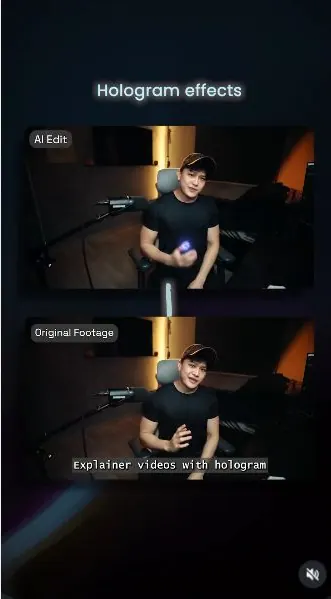
 Watch the original videoInstagram (opens in a new tab)
What you'll make
A checked final video that follows the source workflow and is ready for export.
Add a hologram to a live-action video
Who this is for
Creators, marketers, founders, and small teams producing short AI-assisted videos from source media.
Step by step
Run the workflow
- 01
Workflow behind how I made this exact video
Use the source inputs to complete this stage and produce a result that can be checked before continuing.
These are key frames from my reel. This source breaks down the full

Use this visual to confirm the expected setup or result. 
Use this visual to confirm the expected setup or result. 
Use this visual to confirm the expected setup or result. Common failure modes- The generated scene changes the person, camera, room, product, or timing beyond the requested effect.
- Fast motion hides face, hand, clothing, text, or continuity errors that become visible when the clip is paused.
- 02
Prepare the source material
Use the source inputs to complete this stage and produce a result that can be checked before continuing.
Record a talking video of yourself.

Use this visual to confirm the expected setup or result. Common failure modes- The generated scene changes the person, camera, room, product, or timing beyond the requested effect.
- Fast motion hides face, hand, clothing, text, or continuity errors that become visible when the clip is paused.
- 03
Use the supplied prompts
Use the source inputs to complete this stage and produce a result that can be checked before continuing.
- Modify the provided prompts and for Phase 3. Phase 2: Use My Prompts Phase 2: Use My Prompts
- The prompt is too long, so i
- broken it into 2 pages. The prompt is too long, so i
- broken it into 2 pages.
Common failure modes- The generated scene changes the person, camera, room, product, or timing beyond the requested effect.
- Fast motion hides face, hand, clothing, text, or continuity errors that become visible when the clip is paused.
- 04
Use My Prompts Page 1/2
Use the source inputs to complete this stage and produce a result that can be checked before continuing.
- Modify the provided prompts and for Phase 3. Phase 2: Use My Prompts Page 1/2 Phase 2: Use My Prompts Page 1/2
- Change the purple text
- Transform the uploaded video into a cinematic hologram explainer while preserving the original person exactly.
- Preserve the person's face, identity, facial features, skin tone, expression, voice, speech timing, lip- sync, body proportions, pose, gestures, clothing, and overall performance. Do not change the spoken words, pacing, hairstyle, age, body shape, or facial structure.
- Add clean, premium hologram animations that match the meaning of each script segment. The holograms should feel like floating visual aids created by the person's gestures, not random sci-fi effects.
- Visual style: Use blue, cyan, violet, and purple neon hologram light. The holograms should emit realistic glow onto the person's face, clothing, hands, room, and nearby surfaces. The room should feel subtly lit by the holograms.
- Keep the visuals cinematic, readable, and premium. Do not cover the person's face. Do not distort the face, hands, or body.
- Enhance the video with subtle cinematic camera energy: controlled zooms, parallax depth, hologram tracking, light sweeps, soft glow, realistic reflections, atmospheric depth, and clean particle motion. Do not make camera movement aggressive.
- Scene-by-scene instructions:
- From [xs] to [xs] Script: "[x script]"
- Hologram animation: [Describe the hologram visual that matches this script. Example: floating 3D icon, abstract video frame, workflow line, UI panel, object, diagram, particle effect, or symbolic visual.]
- Sound effect: [Describe subtle sound effects that match the hologram movement. Example: digital shimmer, soft whoosh, hologram pulse, UI pop, energy build.]
- Hologram animation: [Describe the hologram visual that matches this script.]
- Sound effect: [Describe subtle sound effects that match the hologram movement.]
Common failure modes- The generated scene changes the person, camera, room, product, or timing beyond the requested effect.
- Fast motion hides face, hand, clothing, text, or continuity errors that become visible when the clip is paused.
- 05
Use My Prompts Page 2/2
Use the source inputs to complete this stage and produce a result that can be checked before continuing.
- Modify the provided prompts and for Phase 3. Phase 2: Use My Prompts Page 2/2 Phase 2: Use My Prompts Page 2/2
- Change the purple text
- From [xs] to [xs] Script: "[x script]"
- Hologram animation: [Describe the hologram visual that matches this script.]
- Sound effect: [Describe subtle sound effects that match the hologram movement.]
- Quality rules: The holograms must match the script meaning. Keep the person realistic and unchanged. Keep all lighting and glow physically believable. Do not add random effects. Do not cover the face. Do not distort the face, hands, or body.
- Do not change the voice, speech, pacing, timing, or lip-sync. Do not add readable text unless specifically allowed. Add sound effects that match the hologram actions, but keep them subtle and secondary to the original voice. Final output should feel cinematic, clean, premium, and believable.
Common failure modes- The generated scene changes the person, camera, room, product, or timing beyond the requested effect.
- Fast motion hides face, hand, clothing, text, or continuity errors that become visible when the clip is paused.
- 06
Use the complete prompt
Use the source inputs to complete this stage and produce a result that can be checked before continuing.
- Here my the example
- The prompt is too long, so i
- broken it into 2 pages. The prompt is too long, so i
- broken it into 2 pages.
Common failure modes- The generated scene changes the person, camera, room, product, or timing beyond the requested effect.
- Fast motion hides face, hand, clothing, text, or continuity errors that become visible when the clip is paused.
- 07
Scene-by-scene instructions
Use the source inputs to complete this stage and produce a result that can be checked before continuing.
- MY EXAMPLE Page 1/2:
- Transform the uploaded video into a cinematic hologram explainer while preserving the original person exactly.
- Preserve the person's face, identity, facial features, skin tone, expression, voice, speech timing, lip-sync, body proportions, pose, gestures, clothing, and overall performance. Do not change the spoken words, pacing, hairstyle, age, body shape, or facial structure.
- Add clean, premium hologram animations that match the meaning of each script segment. The holograms should feel like floating visual aids created by the person's gestures, not random sci-fi effects.
- Visual style: Use blue, cyan, violet, and purple neon hologram light. The holograms should emit realistic glow onto the person's face, clothing, hands, room, and nearby surfaces. The room should feel subtly lit by the holograms.
- Keep the visuals cinematic, readable, and premium. Do not cover the person's face. Do not distort the face, hands, or body.
- Enhance the video with subtle cinematic camera energy: controlled zooms, parallax depth, hologram tracking, light sweeps, soft glow, realistic reflections, atmospheric depth, and clean particle motion. Do not make camera movement aggressive. Include cinematic sound effects for each hologram.
- From [0s] to [2s] Script: "Explainer video with hologram effect"
- Hologram animation: A blue-purple energy field begins forming around the person's right palm. A floating hologram of an "explainer video" concept appears above the palm, using abstract video frames, timeline layers, and small animated graphic elements. The hologram slowly orbits in a circular motion, as if being controlled by the hand.
- Sound effect: Soft hologram power-up, digital shimmer, subtle energy pulse.
- From [2s] to [3.5s] Script: "used to take hours of animation"
- Hologram animation: A glowing hologram stopwatch appears above the left palm. The stopwatch spins briefly, then shows fast-moving circular time rings to represent hours of work. Keep it clean and symbolic, with no readable numbers.
- Sound effect: Ticking pulse, time-warp shimmer, soft mechanical click.
- From [3.5s] to [5s] Script: "and editing"
Common failure modes- The generated scene changes the person, camera, room, product, or timing beyond the requested effect.
- Fast motion hides face, hand, clothing, text, or continuity errors that become visible when the clip is paused.
- 08
From [5s] to [8s] Script: "But right now, you can create this with just
Use the source inputs to complete this stage and produce a result that can be checked before continuing.
- MY EXAMPLE Page 2/2:
- Hologram animation: The explainer-video hologram and stopwatch hologram move toward each other and combine into a floating "Editing" hologram.
- Sound effect: Digital merge, soft whoosh, particle dissolve.
- Hologram animation: A bright hologram light bulb appears in front of the person, then transforms into floating prompt cards and glowing input fields. The prompt cards should appear as abstract blocks, not readable text. The hologram should feel simple, powerful, and directly connected to the idea of creating with prompts.
- Sound effect: Light bulb spark, clean UI pop, gentle rising energy.
- From [8s] to [9.5s] Script: "here's how"
- Hologram animation: All hologram elements collapse into a concentrated orb of blue-purple light, then burst outward into a polished cinematic reveal. Add a short shockwave of particles and floating hologram fragments around the person. Display the words "Here's How" as a clean hologram title only if readable text is allowed. Otherwise, use an abstract reveal effect without text.
- Sound effect: Cinematic hologram burst, low impact hit, sparkling particle trail.
- Quality rules: The holograms must match the script meaning. Keep the person realistic and unchanged. Keep all lighting and glow physically believable. Do not add random effects. Do not cover the face. Do not distort the face, hands, or body. Do not change the voice, speech, pacing, timing, or lip-sync. Do not add readable text unless specifically allowed. Add sound effects that match the hologram actions, but keep them subtle and secondary to the original voice.
- Final output should feel cinematic, clean, premium, and believable.
Common failure modes- The generated scene changes the person, camera, room, product, or timing beyond the requested effect.
- Fast motion hides face, hand, clothing, text, or continuity errors that become visible when the clip is paused.
- 09
Assemble the video
Use the source inputs to complete this stage and produce a result that can be checked before continuing.
- Click here to open Higgsfield (opens in a new tab)Direct link supplied in the source. Source page 11.
- Now Edit your video with your newly generated image.
- With your assets ready, it's time to edit your footages!
- I am using Higgsfield for my Seedance 2.0:
- Upload your talking + Paste in the modified prompts. Adjust the video length and resolution and press generate.
![Upload interface used for from [5s] to [8s] script: "but right now, you can create this with just.](/images/tutorials/tut-039/page-11-visual-03.webp)
Check the selected files and their order before continuing. ![Upload interface used for from [5s] to [8s] script: "but right now, you can create this with just.](/images/tutorials/tut-039/page-11-visual-04.webp)
Check the selected files and their order before continuing. Common failure modes- The generated scene changes the person, camera, room, product, or timing beyond the requested effect.
- Fast motion hides face, hand, clothing, text, or continuity errors that become visible when the clip is paused.
Before you use it
Final checks
- Check the full result for changed people, products, text, timing, or layout.
- Confirm the tool, model, controls, and cost before generating.
- Keep private or unreleased material out of third-party tools.
Share your work
Made it? Show me.
Post your finished result on Instagram and tag @terencesia. I'll share a few standout results with the community.
Tag @terencesia on Instagram (opens in a new tab)Next step
Run one low-cost test, record the first visible failure, and revise only the instruction or source asset tied to that problem.
Back to the tutorial library