
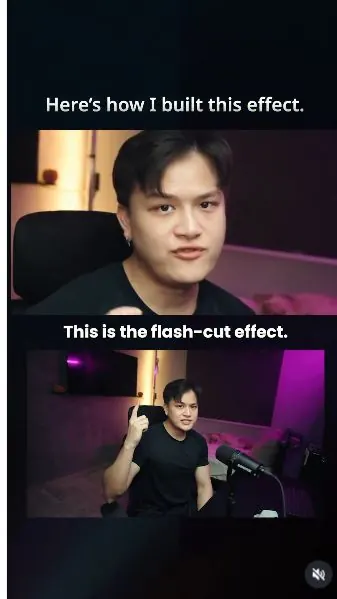
 Watch the original videoInstagram (opens in a new tab)
What you'll make
Make an initial edit, refine the visual effects, then add sound effects and export.
Who this is for
Creators making videos with their own reference assets.
Step by step
Run the workflow
- 01
Open the editor
Open invideo and choose Editor.
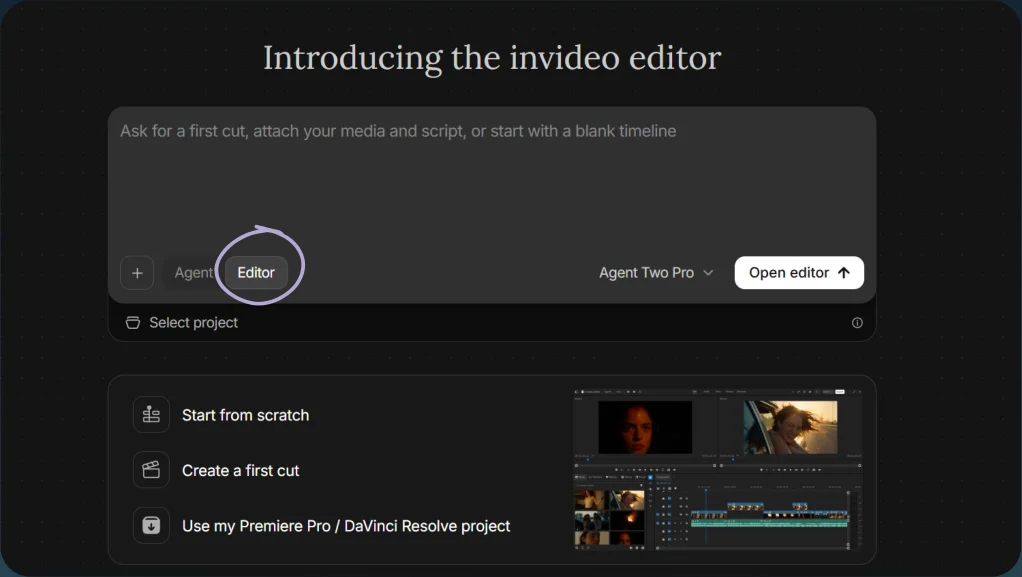
Choose Editor 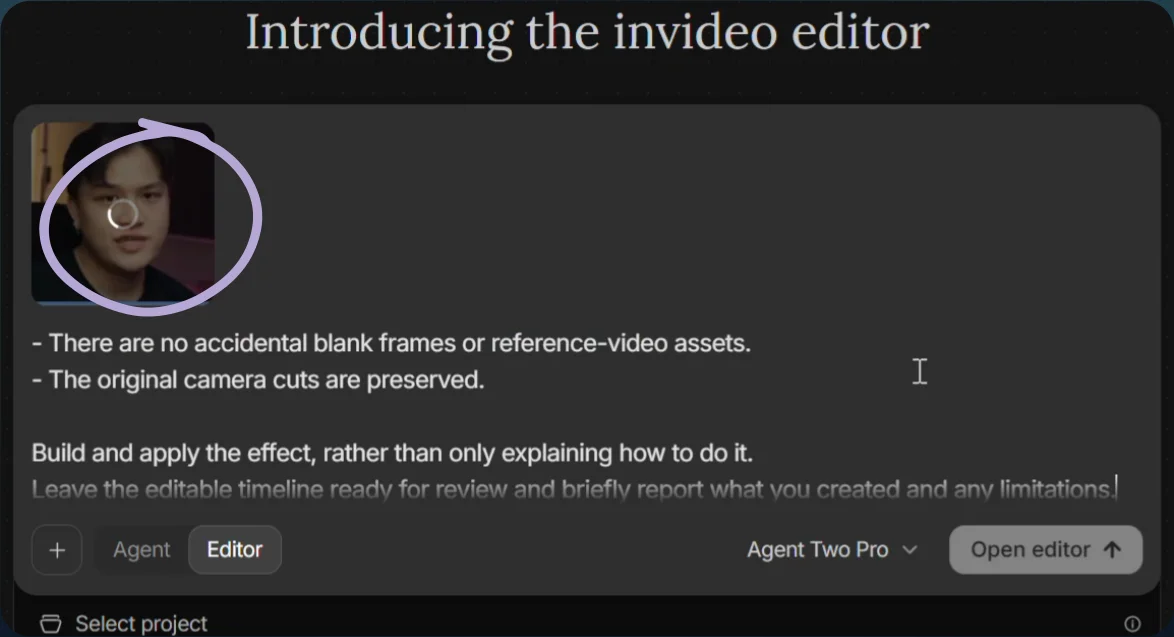
Upload the source clip - 02
Upload your video
Upload your clip and name the project.
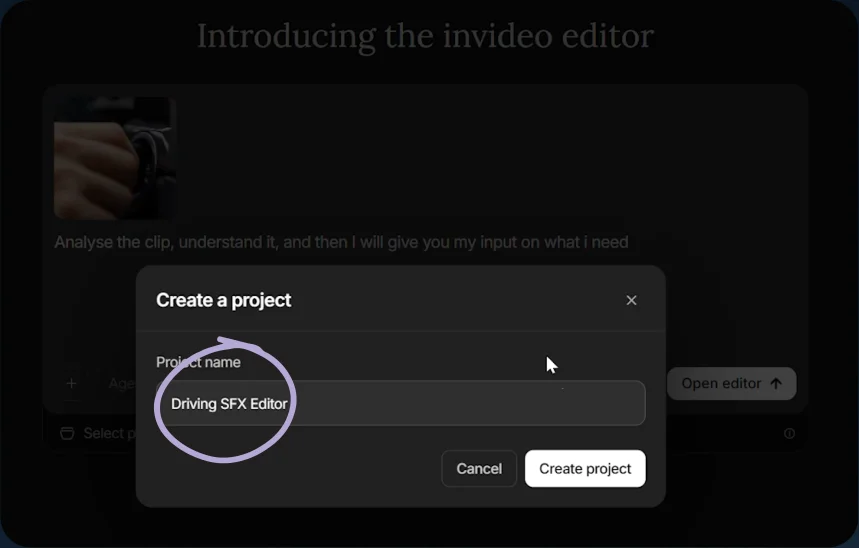
Name the project - 03
Apply the three prompt stages
- Send the initial-edit prompt first.
- Use the refinement prompt, then the sound-effects prompt, in that order.
Show copyable prompt
Part 1 Use the timeline agent to build and apply an editable FLASH-CUT effect sequence to my talking-head footage. INPUTS Target footage: “2.1-invideo-seedance_2_5.mp4” Approximately 11.7 seconds, 1280 × 720, 24 fps. Style reference only: “Comment AI for the flash-cut Skill 👇I turned my viral flash-cut workflow into a reusable creati.mp4” Identify the target footage on the timeline by its filename. Do not assume a track or layer number. If it is not on the timeline, create a sequence matching its resolution and frame rate and place it there. Study the reference’s finished flash-cut examples, particularly the short bursts of altered frames interspersed with clean footage. Ignore its app demonstration, captions, logos, black borders and layout. Do not insert any of the reference video into my output. GOAL Create a punchy, deliberate flash-cut treatment that demonstrates the effects as I name them. The reference uses strongly differentiated visual treatments, not just a generic glitch overlay. Reproduce that principle using custom shaders, short effect segments and editable graphic layers on my existing footage. My face, pose, gestures, camera angles and original motion must remain recognisable. Do not regenerate the video or create replacement images. PRESERVE THE SOURCE Keep: - The complete clip and its existing camera cuts. - Its original duration, playback speed and framing. - The dialogue, audio timing and lip sync. - The original appearance outside the specified effect windows. Do not add music, sound effects, subtitles, titles, watermarks or a reference-video inset. Do not use rotoscoping, subject segmentation or object tracking. Do not create a permanent overall colour grade. Keep an untouched source version available for comparison. BUILD THESE DISTINCT TREATMENTS 1. DIGITAL GLITCH Use brief horizontal slice displacement, restrained red/cyan channel separation and a few rectangular interference blocks. Keep most of the face readable. At 1280 × 720, start with approximately 4–8 pixels of RGB separation and 10–20 pixels of displacement in a few narrow horizontal bands. Avoid smearing the entire frame or covering it with random noise. 2. INVERTED MONOCHROME Create a photographic-negative treatment with strong black-and-white contrast. Retain facial contours, hair, clothing folds and background detail. This must look clearly different from the glitch and heat-map treatments, not like a white flash. 3. THERMAL / HEAT-MAP LOOK Create a false-colour shader based on image luminance. Map dark areas to deep blue/purple, midtones to cyan/green, and brighter areas to orange/yellow. Use controlled colour bands with readable facial detail. This is a stylised thermal appearance, not actual temperature analysis. Do not wash the entire frame into flat red or yellow. 4. MONOCHROME SCAN / EDGE LOOK Use restrained edge detection, high contrast and fine grain or halftone texture to produce a technical scanned-image appearance. Retain recognisable features rather than reducing everything to a faint outline. A few small screen-space squares or thin grid fragments can supplement this treatment. Keep them off the centre of my face. Do not add fake readable interface text. TIMING AND EDIT RHYTHM All times are relative to the beginning of the target clip, not the full project timeline. Snap boundaries to the nearest frame at 24 fps. Confirm the spoken words before applying. If a word occurs slightly earlier or later, shift its effect window to match. A. Approximately 0.54–0.83 seconds, on “flash-cut”: Opening micro-montage. Show approximately 3 frames of inverted monochrome followed immediately by 4 frames of the scan/edge treatment, then snap back to clean footage. Keep this compact. Do not run the effect through the whole opening sentence. B. Approximately 3.00–3.33 seconds, on “glitches”: Apply the digital glitch treatment for about 8 frames. Use one deliberate displacement burst, then return clean. C. Approximately 3.67–4.00 seconds, on “inverts”: Apply inverted monochrome for about 8 frames, then return clean. D. Approximately 4.54–4.88 seconds, on “heatmaps”: Apply the thermal treatment for about 8 frames, then return clean. E. Approximately 5.25–5.50 seconds, on “and more”: Apply the scan/edge treatment for about 6 frames with a restrained graphic-square accent, then return clean. F. From approximately 5.50 seconds to the end: Keep the footage clean so the explanation about the AI agent and “Here’s how” remains easy to follow. Use hard effect changes, not long dissolves. Do not repeat a flashing pattern continuously. Do not insert pure-white frames, full-screen white/black strobing or repeated saturated-red flashes. The impact should come from different image treatments and their timing, not extreme brightness. IMPLEMENTATION Build this with the timeline agent using custom shaders for the image treatments and separate shape layers where needed. If supported, create one clearly named effect with selectable modes. Otherwise, use separate named shader effects and timeline segments. Prioritise a working, editable result over forcing everything into one shader. Use normal compositing for full-frame inversion and thermal treatments. Do not automatically apply Screen blending to the whole effect stack. Outside each effect window, the output must revert exactly to the clean source. Avoid a duplicated audio track, shifted video frames or an offset between clean and affected layers. EDITABLE CONTROLS Where supported, expose: - Master effect mix, with zero restoring the clean source. - Effect mode. - Glitch displacement and RGB separation. - Inversion amount and contrast. - Thermal palette and colour-band softness. - Edge strength and texture amount. - Graphic-overlay opacity. Keep burst positions and durations editable on the timeline. Use stable, repeatable randomness for glitch patterns. If a requested control is unsupported, explain that limitation and keep the corresponding effect editable using the available tools. Do not claim controls exist unless they do. QUALITY CHECK Preview the entire result and inspect the short bursts frame by frame. Confirm: - Each named effect lands on the matching spoken word. - All four treatments are visibly different. - My face and motion remain recognisable. - Clean sections have no residual effects. - No audio, duration or lip-sync changes occurred. - There are no accidental blank frames or reference-video assets. - The original camera cuts are preserved. Build and apply the effect, rather than only explaining how to do it. Leave the editable timeline ready for review and briefly report what you created and any limitations.Part 2 Revise the existing flash-cut edit. It is currently too sparse and stops around 5.5 seconds. That is NOT the intended result. OVERRIDE the previous instruction to leave everything after 5.5 seconds clean. Also override the previous speech-only effect schedule. Apply the flash-cut treatment across the ENTIRE source clip, from the opening frame through its actual end, approximately 11.7 seconds. Do not trim it to exactly 11 seconds. MAIN REQUIREMENT: EVERY CUT OR CAMERA-ANGLE CHANGE MUST HAVE AN EFFECT. Use the timeline agent to make these changes directly in my existing project, not simply explain what to do. 1. INSPECT ALL THE CUTS FIRST Inspect the complete target video: “2.1-invideo-seedance_2_5.mp4” The camera cuts are already baked into this single video file. Do not assume that one timeline clip means one continuous shot. Identify every visible edit, angle change and abrupt framing change inside the footage, including close-ups, wider shots, side angles and detail shots. Create a timestamp marker for each detected cut. Check the full duration, especially the second half. The visual cuts are the PRIMARY trigger for effects. Spoken words are additional opportunities, not the only trigger. 2. PUT AN EFFECT AT EVERY CUT At each cut or angle change, apply a clearly visible flash-cut treatment starting on the first frame of the incoming shot. Use roughly 4–8 frames per burst at the source frame rate of 24 fps. Adjust within that range to suit the shot, but do not skip any cut. At selected stronger cuts, use two contrasting treatments back-to-back within the burst, for example: - 3 frames of inverted monochrome followed by 3 frames of thermal colour. - 3 frames of RGB displacement followed by 4 frames of edge-scan treatment. - 4 frames of solarisation followed by 3 frames of graphic Difference blending. These are examples of variation, not a sequence to repeat mechanically. Keep the incoming shot moving normally underneath the treatment. Do not insert unrelated images, freeze the performance or disturb the dialogue. When cuts are very close together, shorten or combine adjacent bursts so each incoming shot receives a distinct treatment without creating overlapping clutter. 3. KEEP THE EFFECT RHYTHM ACTIVE THROUGHOUT This must feel like a complete flash-cut edit, not a few isolated filter demonstrations. Add an opening burst at the beginning of the clip. Continue treating EVERY cut and angle change throughout the entire second half, including the section about the AI agent, the prompt and “Here’s how.” For shots that hold longer than approximately one second, add a secondary brief accent at a gesture, head movement or suitable visual beat. Do not leave long untreated stretches simply because no effect is named in the dialogue. Use clean footage between bursts as rhythmic contrast. However, do not designate any sentence, section or half of the clip as an effect-free zone. Include a final deliberate accent in the closing shot. Do not extend the video with an outro or leave a long clean tail. 4. USE A VARIED EFFECT PALETTE Reuse and improve the effects already built in this project. Add missing treatments using editable custom shaders and graphic layers where supported. Alternate among these distinct looks: DIGITAL GLITCH Horizontal slice displacement, visible RGB channel separation and a few interference blocks. Make it punchy, not merely a faint coloured outline. INVERTED MONOCHROME A strong photographic-negative treatment with recognisable facial contours, hair and clothing detail. Not a blank white frame. THERMAL / HEAT MAP False-colour luminance mapping with deep blue/purple shadows, cyan/green midtones and orange/yellow highlights. Preserve detail rather than turning the entire frame into one flat colour. EDGE SCAN / HALFTONE High-contrast monochrome edges with fine scan texture, grain or halftone detail. Keep the face readable. SOLARISED / POSTERISED COLOUR Bold tonal bands and partially inverted colours for a different visual texture from the thermal treatment. GRAPHIC DIFFERENCE FLICKER A few rectangular shapes, thin lines or grid fragments using Difference blending or an equivalent supported method. Change their arrangement between bursts. Do not obscure the entire face or add meaningless text. Use one dominant treatment at a time, with occasional restrained supporting overlays. Do not stack every effect on every cut. Make consecutive cuts visibly different. Avoid applying the same preset repeatedly. 5. MATCH THE REFERENCE’S EDITING LANGUAGE Use the uploaded flash-cut reference for its rapid changes in visual treatment, strong contrast between altered and clean frames, and deliberate timing. Do not copy its interface, captions, logos, footage, subjects or layout. Do not attempt its generated scene transformations. Build these effects directly on my existing footage using shaders and editable layers. The treatment should be immediately visible at normal playback speed, not only when pausing frame by frame. 6. PRESERVE MY VIDEO AND AUDIO Keep the existing: - Shot order and camera cuts. - Source duration and playback speed. - Resolution and aspect ratio. - Original dialogue and audio levels. - Lip sync, gestures and motion. Do not regenerate my face or body. Do not use rotoscoping or object tracking. Do not add music, sound effects, subtitles, watermarks or new scenes. Do not duplicate the audio when creating effect layers. Avoid blank white frames, sustained full-screen strobing or repeated saturated-red flashes. Create impact through image treatments, textures and timing rather than extreme brightness. 7. KEEP THE RESULT EDITABLE Preserve an untouched source version. Organise and label effect segments clearly by cut number and treatment, for example: “Cut 01 – Invert” “Cut 02 – Thermal” “Cut 03 – Glitch + Edge” Keep burst timing, duration and treatment strength adjustable. Where supported, expose controls for effect mix, RGB separation, displacement, thermal palette, edge strength and overlay opacity. If a requested treatment or control is unsupported, use the closest editable alternative and report the limitation. Do not claim to have built something that is absent. 8. VERIFY THE FULL CLIP BEFORE FINISHING Preview the entire video from beginning to end and check every cut marker. Confirm that: - EVERY actual cut or angle change has an effect. - The opening and closing shots both receive treatment. - Effects continue throughout the FULL approximately 11.7 seconds. - Nothing stops at 5.5 seconds. - Longer shots contain additional accents where needed. - Consecutive treatments are varied and clearly visible. - The original audio, duration and lip sync are unchanged. - There are no accidental gaps, blank frames or duplicated audio. After applying the changes, give me a short timestamp list showing each detected cut and the treatment applied to it. Report any cut you could not treat rather than silently skipping it. Do not stop after analysing or proposing a plan. Complete the revision on the timeline and leave the full-length result ready to preview.Part 3 The visual edit is now approved. Do not change it. Add cinematic sound design to EVERY transition, camera cut and flash-cut effect burst across the FULL approximately 11.7-second timeline, from the opening through the final accent. CRITICAL: EVERY SOUND MUST BE A SEPARATE, EDITABLE AUDIO CLIP. Do not generate one continuous sound-design file. Do not combine all the effects into a single audio file. Do not bake sound effects into the dialogue or video. If a transition uses a whoosh, impact and glitch layer, place those as THREE separate clips on separate audio tracks. Keep each sound independently movable, trimmable, replaceable and adjustable. 1. ANALYSE THE FINISHED VISUAL EDIT Inspect the CURRENT timeline and identify every transition and effect burst, including the additional distortions just added. Use the actual visual timing, not only the spoken words or an older timestamp list. Every transition must receive a deliberate sound cue. Smaller accents can use lighter sounds; not every cut needs a huge impact. 2. SOUND DIRECTION Make it feel like a polished cinematic sci-fi trailer compressed into a short, energetic edit. Use tight, detailed sounds with weight and texture: - Fast air movements and directional whooshes. - Digital glitches, granular crackles and data stutters. - Deep, controlled impacts with audible midrange punch. - Metallic snaps and short mechanical hits. - Reverse swells leading into stronger transitions. - Short pitch bends and synthetic distortion accents. Avoid cartoon sounds, stock notification pings, repetitive swooshes and a constant wall of noise. Do not add music or additional voices. 3. MATCH SOUND TO THE EFFECT RADIAL ZOOM / PUNCH-IN: A fast rising whoosh that lands in a tight impact at the visual peak. HORIZONTAL SLICE TEAR / RGB GLITCH: A short fractured digital crackle or stutter, timed to the image displacement. LENS WARP: A brief elastic pitch bend or pressure-sweep sound that resolves as the image snaps back. THERMAL / SOLARISED CHANGE: A short electrical surge or textured synthetic zap. EDGE SCAN / GRAPHIC FLICKER: A precise scan tick, metallic click or granular mechanical accent. SPLIT-IMAGE ECHO: A short stereo double-hit or flutter that collapses with the image. STRONG COMBINED TRANSITIONS: Layer a short reverse lead-in, an impact and a detailed glitch accent. Keep each component as its own clip. These are sound-design directions. Choose sounds that suit what actually happens on screen. 4. TIMING AND DYNAMICS Synchronise each sound’s main transient with the corresponding visual cut or distortion peak. Where helpful, start a whoosh or reverse swell approximately 2–4 frames before the cut so it lands on the transition. Never shift the picture to fit the sound. Use stronger layered cues at major camera changes and lighter, shorter cues for supplementary flashes. Vary texture, pitch and duration. Do not repeat the exact same sound at every cut. Keep most cues short enough to preserve separation between events. Use longer tails selectively, not on every transition. Create an immediate opening accent and a decisive closing accent within the existing duration. Do not extend the timeline. 5. KEEP THE DIALOGUE CLEAR Preserve the existing dialogue on A1, including its timing, sync and current processing. Mix the new SFX around the voice. Every word must remain intelligible. Automate or duck the SFX where they compete with speech. Control harsh high frequencies and excessive low-end buildup. Make the result powerful through timing, contrast and layering, not simply loudness. Check that impacts remain audible on phone speakers, not only through sub-bass. Prevent clipping and abrupt audio clicks. Apply appropriate short fades to individual clips. 6. EDITABLE TRACK ORGANISATION Keep A1 for the original dialogue. Create separate SFX tracks, for example: A2: Whooshes and movement A3: Impacts and low-end accents A4: Digital glitches and crackles A5: Tonal sweeps and reverse lead-ins A6: Fine mechanical and graphic accents Create more tracks if needed to keep simultaneous components independently editable. Give each clip a descriptive name containing its event or timestamp, such as: “02.00_Zoom_Whoosh” “02.00_Impact” “02.00_Digital_Crackle” Source or generate individual one-shot sounds and arrange them on the timeline. Do not use a premixed full-length soundtrack as a shortcut. If you cannot create separate editable audio clips, stop and explain the limitation rather than silently flattening the sound design. 7. FINAL CHECK Play the complete timeline with sound and verify: - Every transition and effect burst has a matching cue. - Sound design continues across the FULL clip. - Major and minor events have different levels of emphasis. - Dialogue remains clear throughout. - There is no clipping, excessive rumble or distracting tail buildup. - Every sound layer is a separate editable clip. - No picture edits, timing changes or dialogue changes were made. Apply the sound design directly to the existing timeline and leave it ready to preview. Briefly report the SFX tracks created, the number of individual clips added and any limitations.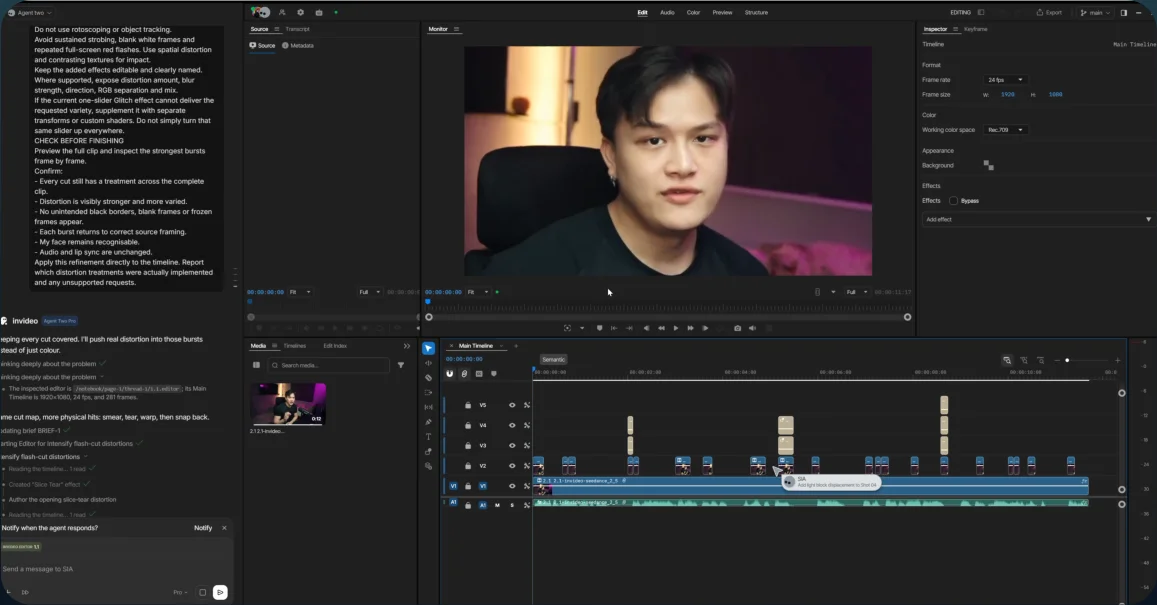
Editing timeline - 04
Export
Review the finished edit and export the video.
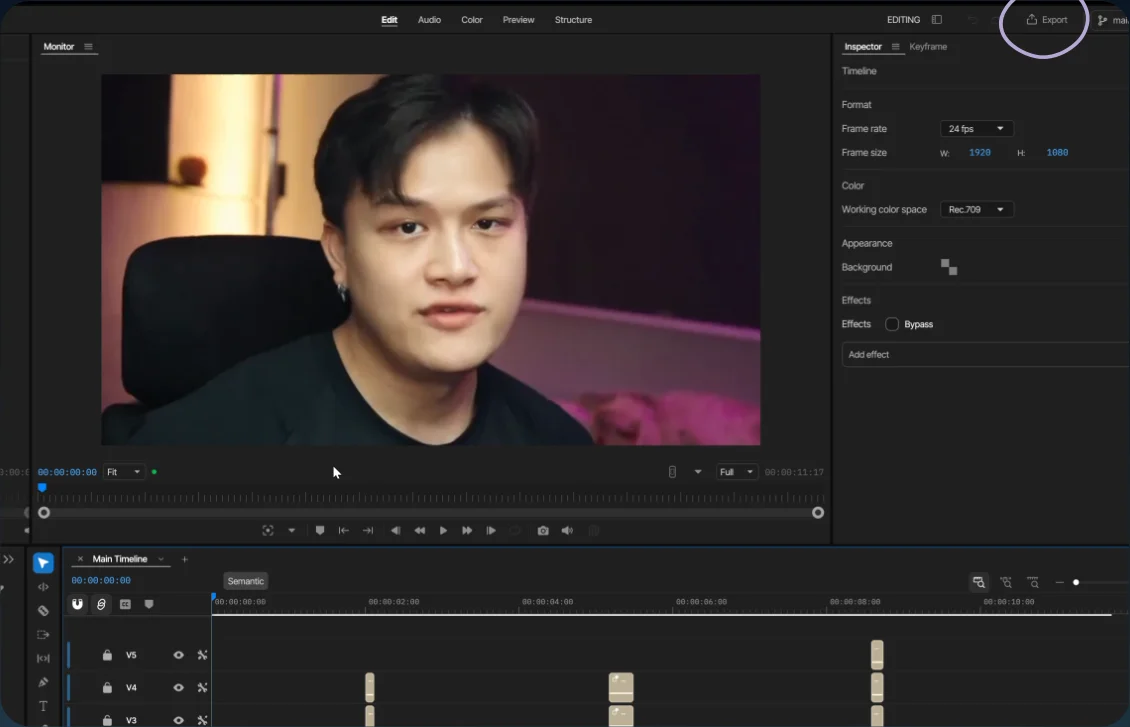
Open Export