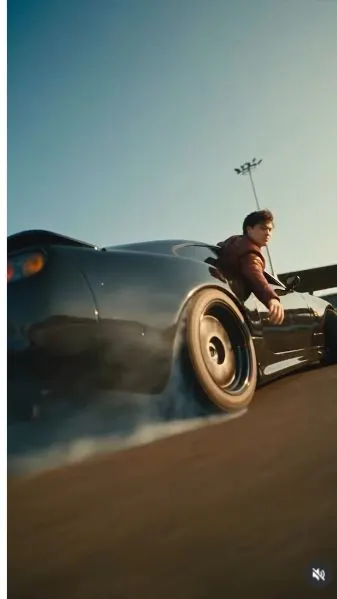
 Watch the original videoInstagram (opens in a new tab)
What you'll make
A generated video using one Higgsfield 2.0 preset.
Use one Higgsfield 2.0 effect with your own images.
Who this is for
Anyone creating a Higgsfield effect video inside ChatGPT.
Step by step
Run the workflow
- 01
Select Higgsfield
Connect the Higgsfield plugin.
- Click here to add Higgsfield to ChatGPT (opens in a new tab)Official setup page for the Higgsfield ChatGPT plugin.
- Open the setup link and add Higgsfield to ChatGPT.
- Start a chat and select @Higgsfield.
Common failure modes- If @Higgsfield is plain text, select the plugin from the tool menu.
- 02
Select GPT-6 Astra and Max
Use the settings required for this workflow.
- Select GPT-6 Astra.
- Set reasoning to Max.
Common failure modes- If either option is unavailable, check your account access before continuing.
- 03
Open the effects gallery
Show the available presets.
Copy and send the command below.
@Higgsfield /effectsOpen the effects gallery inside the current chat.
- Use with
- Higgsfield selected in a ChatGPT conversation.
Common failure modes- If the gallery does not open, reselect Higgsfield and send the exact command again.
- 04
Choose a new 2.0 preset
Preview the seven new effects.
- Click here to preview Eyes In (opens in a new tab)Moves through the subject's eye into a new scene.
- Click here to preview Wild Ride (opens in a new tab)Moves quickly around the subject.
- Click here to preview Frozen in Motion (opens in a new tab)Freezes the subject while the surroundings keep moving.
- Click here to preview LiDAR (opens in a new tab)Creates a LiDAR-style transition.
- Click here to preview Act Natural (opens in a new tab)Uses a staged time-freeze effect.
- Click here to preview Studio Slide (opens in a new tab)Slides copies of the subject through the frame.
- Click here to preview Cutout (opens in a new tab)Splits the scene into floating cutout layers.
- Choose one of the seven presets below.
- Use the preview links to see each effect in motion.
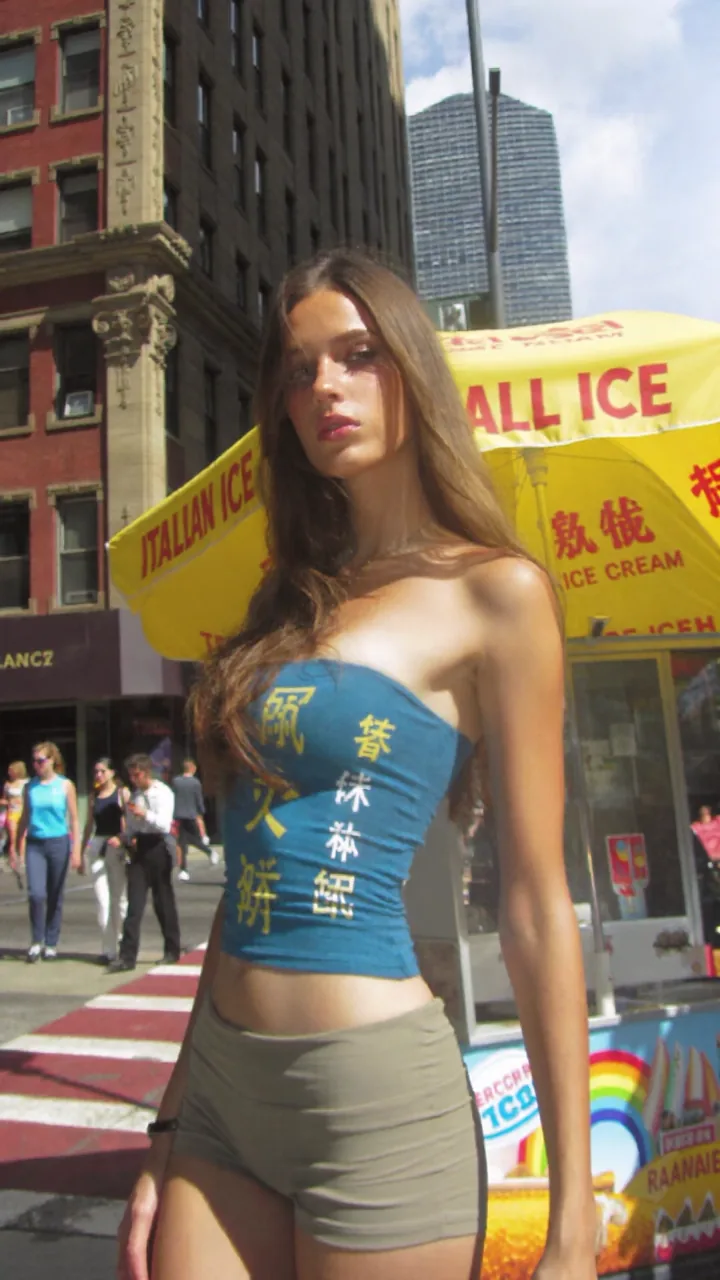
Eyes In 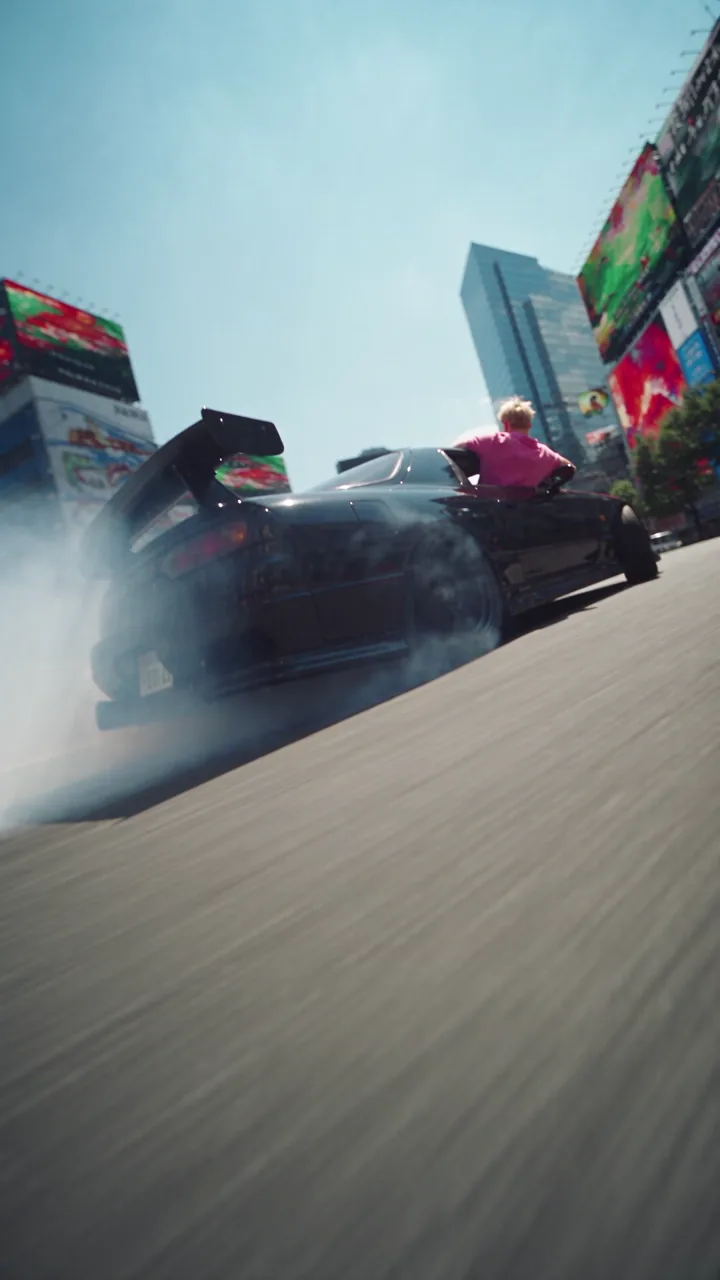
Wild Ride 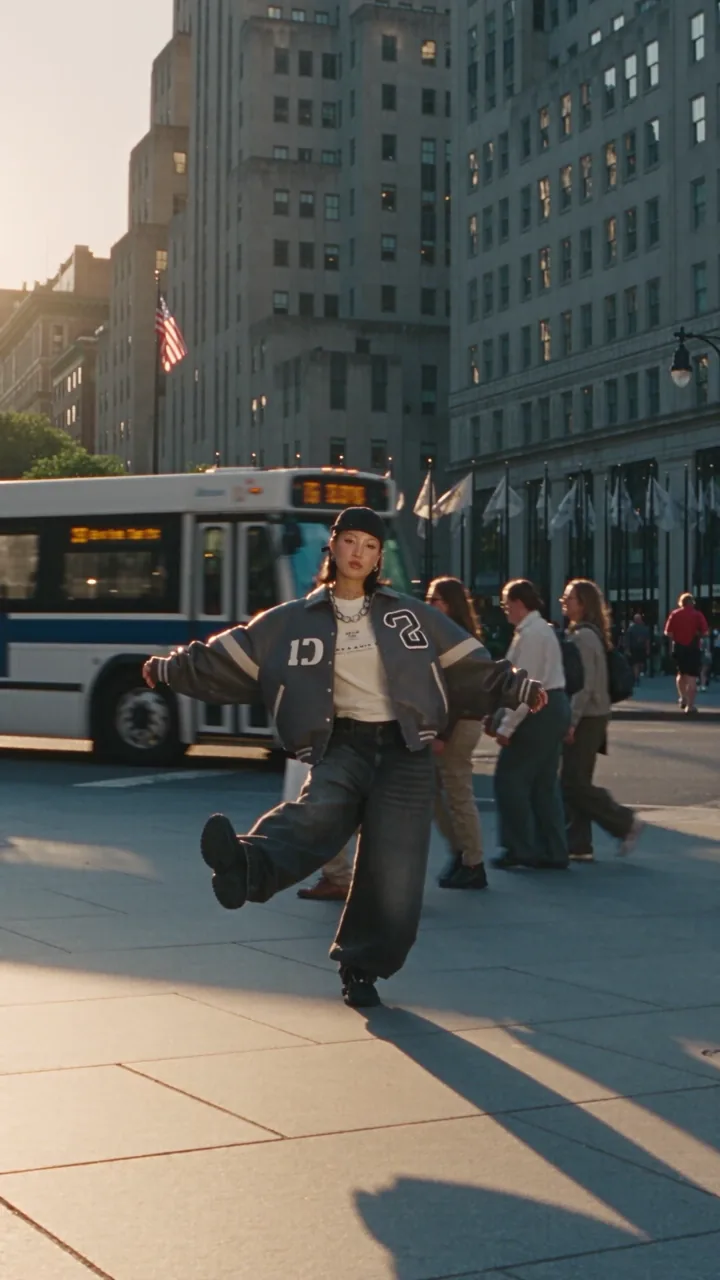
Frozen in Motion 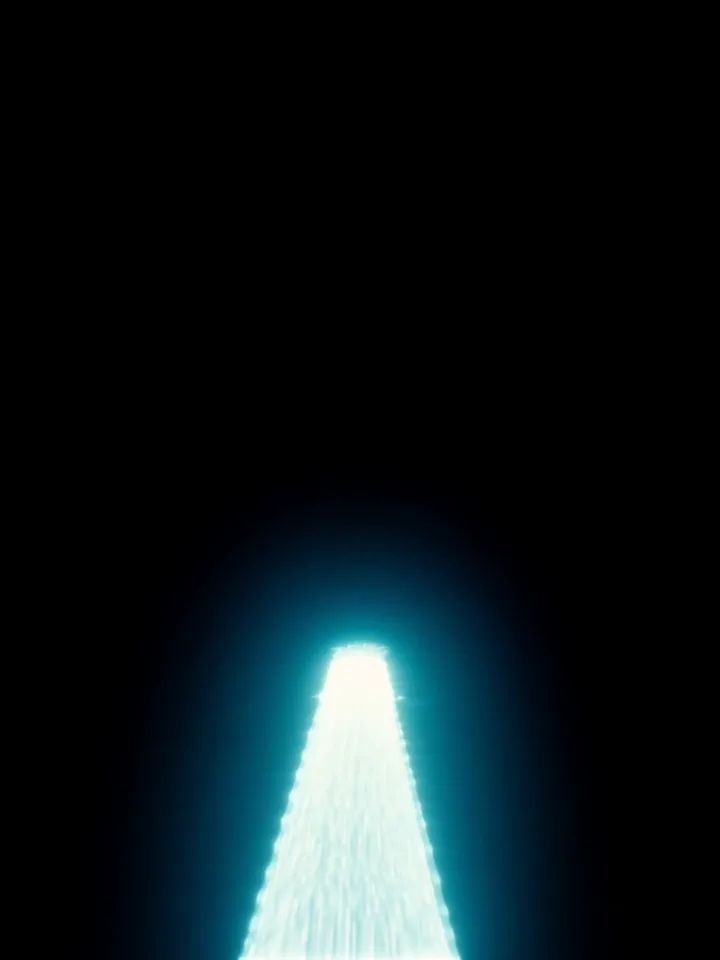
LiDAR. The official example frame is intentionally dark. 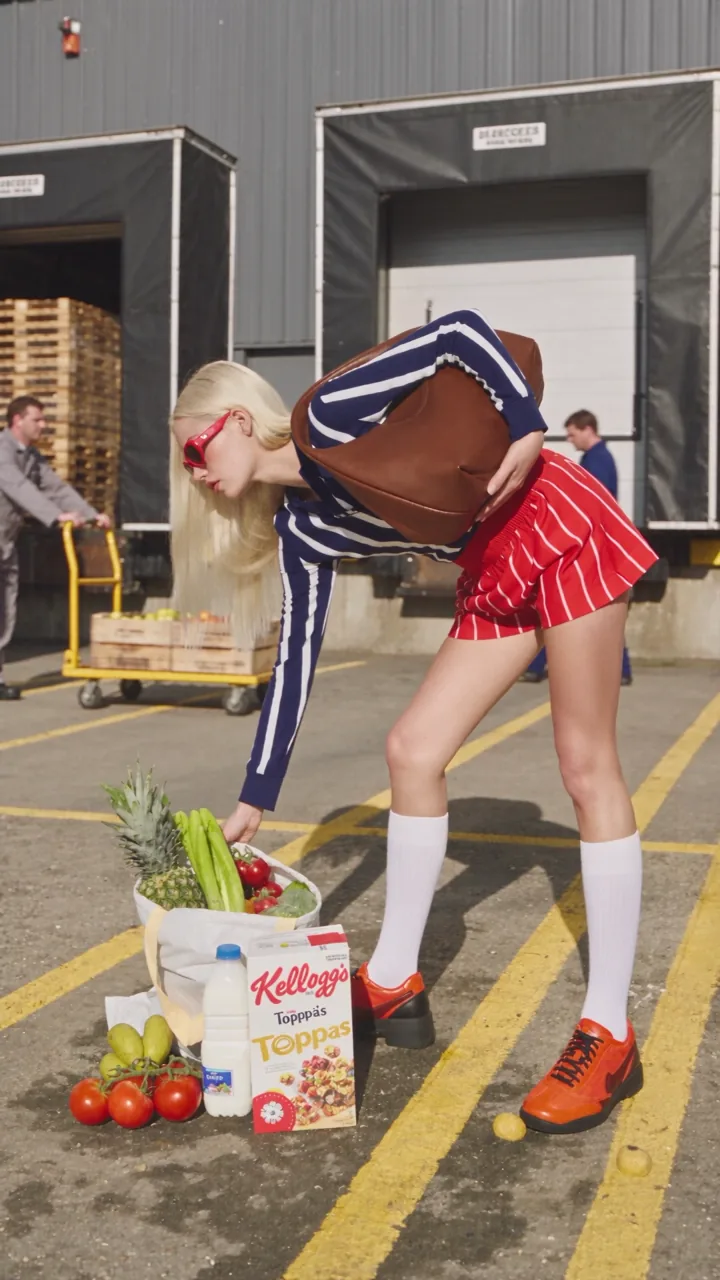
Act Natural 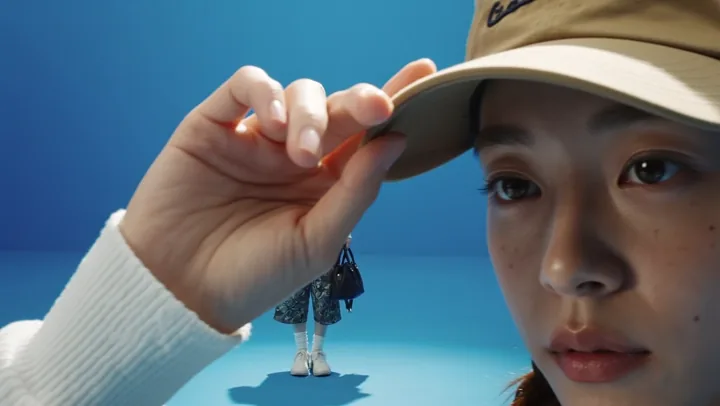
Studio Slide 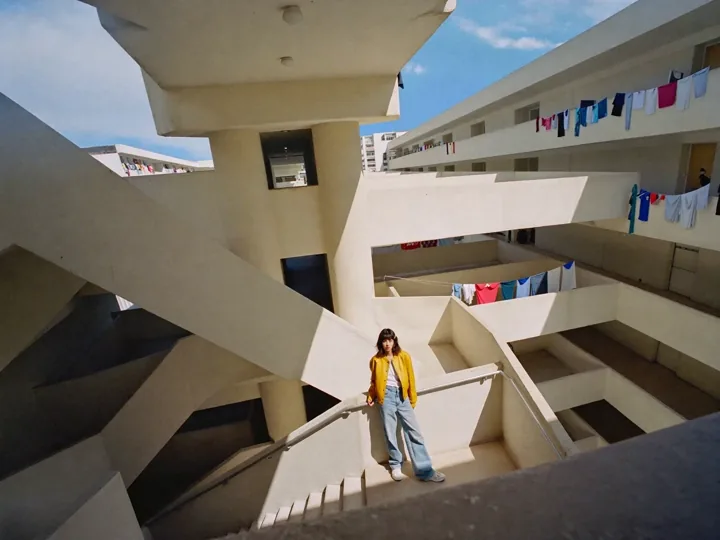
Cutout Common failure modes- If you chose an older effect, return to the gallery and select a 2.0 preset.
- 05
Upload your images
Add the images required by the preset.
- Follow the on-screen input guide and upload the requested images.
- Generate the video.
Common failure modes- If an image is rejected, replace it with a supported file.
- 06
Play the video
Check the result.
Play the generated video.
Common failure modes- If it looks wrong, try clearer images.