
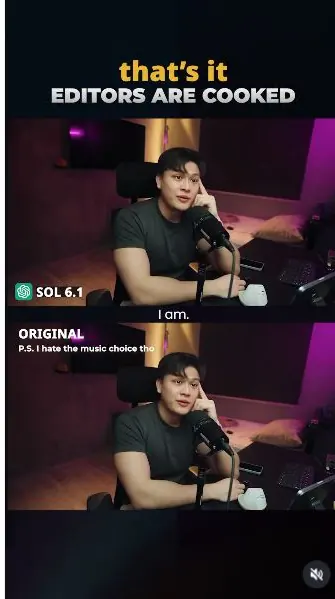
 Watch the original videoInstagram (opens in a new tab)
What you'll make
Connect invideo to ChatGPT or Claude, upload your assets, then edit with the supplied prompt.
Who this is for
Creators making videos with their own reference assets.
Step by step
Run the workflow
- 01
Connect invideo
- Open the setup page and choose ChatGPT or Claude.
- Follow the connection instructions and sign in to invideo when asked.
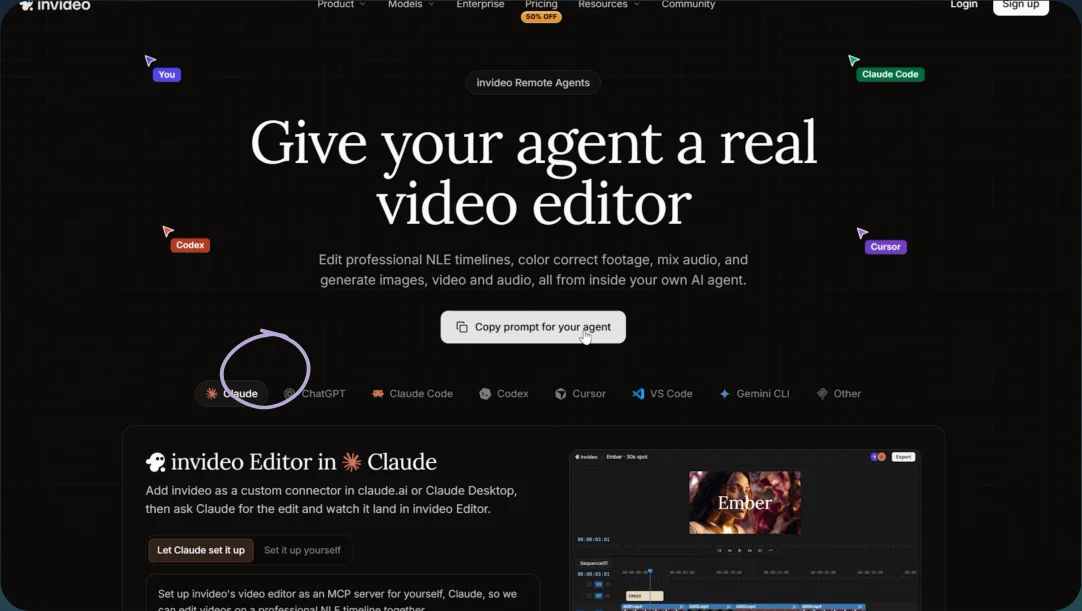
Open the connector setup page 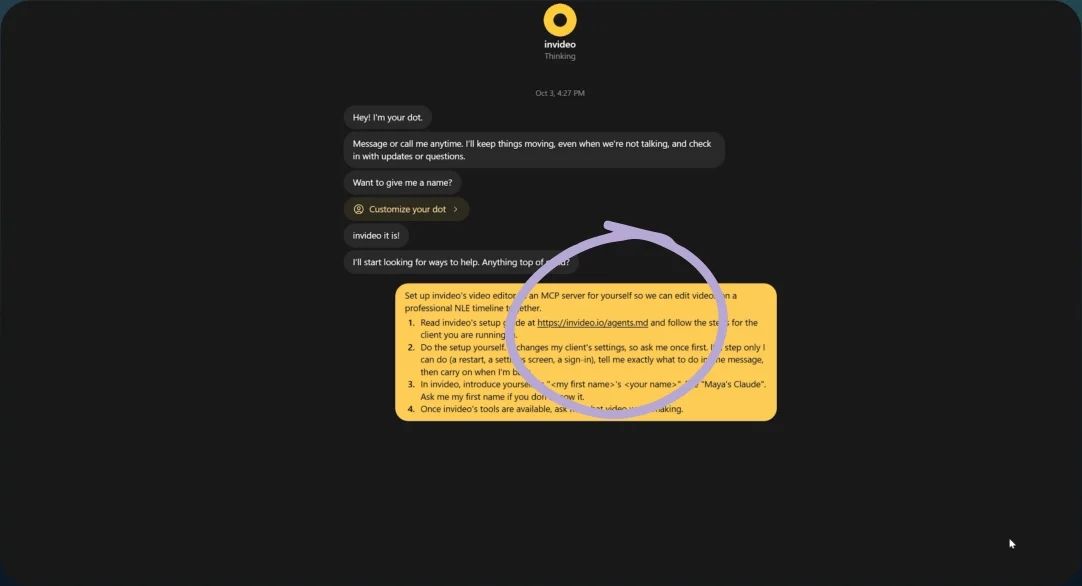
Paste the setup prompt and connect - 02
Add the assets and prompt
- Prepare your footage, script, style references, and screen recordings.
- Replace the five bracketed inputs in the prompt with your project name and uploaded file names, or folders the agent can actually access.
- Send the prompt. If it cannot open a file, follow its upload instructions before editing.
Show copyable prompt
Video prompt Replace the five bracketed inputs below before sending. A pasted local path does not upload a file. MASTER BRIEF: COMPLETE CINEMATIC TALKING-HEAD REEL EDIT Start a NEW video editing project for this brief. Do not continue or overwrite a previous video edit. Fully edit my recorded talking-head video into a premium, professionally produced social reel, using the supplied reference videos as the creative direction. Make the edit cinematic, dynamic, and impactful, with fluid kinetic supers, polished explanatory graphics, authentic screen-recording demonstrations, and epic sound design featuring heavy bass, risers, and well-timed cinematic impacts. Execute the complete edit: camera coverage, B-roll, screen-recording integration, custom illustrations, explanatory graphics, kinetic supers, logos, compositing, sound design, music, colour grading, audio mixing, and final export. Deliver ONE complete, finished version with all requirements applied together. This is an instruction to edit the video, not to provide an editing plan or wait for separate rounds of creative feedback. The result should feel like a polished multicamera interview combined with fluid motion design and cinematic sound. Do not rely on static captions, repeated digital zooms, generic illustrations, or unrelated effects. PROJECT INPUTS AND TIMELINE (PLEASE CHANGE THESE) New project name or accessible working folder: "[YOUR PROJECT]" Talking-head footage: "[YOUR FOOTAGE FILES]" Script: "[YOUR SCRIPT FILE]" Reference style: "[YOUR STYLE-REFERENCE FILES]" Screen recordings of the setup process and the agent editing: "[YOUR SCREEN-RECORDING FILES]" Before editing, verify access to every supplied input, using uploaded files or folders your environment can actually read. A typed path is not proof of access. If anything is inaccessible, tell me which file is needed and how to upload it for this connector, then wait. Do not assume filenames or invent unavailable assets. Create one main timeline in the NEW project and complete the entire edit there. Do not split the work across separate revision timelines. Read the supplied script and review the entire talking-head recording. If the script differs from the recording, use the recording as the source of truth for the actual words, delivery, and timing. If no usable script is available, transcribe the recorded video. Use the supplied screen recordings as the primary visual material for demonstrating the setup, the working process, and the agent performing the edit. IMPORTANT: During the setup explanation, visually show ChatGPT / Claude, not just ChatGPT. Both must be clearly represented in the setup sequence. Preserve the original footage and unrelated project files. 1. STUDY THE REFERENCES AND MAP THE COMPLETE EDIT Watch the supplied reference videos before editing. Identify their camera coverage, pacing, typography, compositions, illustration style, animation behaviour, colour palette, transitions, and sound design. Follow their specific visual language rather than applying a generic talking-head template. If the references differ, choose a coherent primary style and borrow compatible elements. Apply the requested cinematic, dynamic treatment within that visual language. Create energy through purposeful camera cuts, animation, screen-recording reveals, musical progression, and sound design rather than random effects. Review the entire talking-head recording and identify: - The opening hook, key statements, comparisons, and conclusion. - Every explanation of a setup, configuration, process, or workflow. - The passages that should show ChatGPT / Claude during setup. - Relevant screen-recording segments that demonstrate the spoken explanation. - Appropriate moments for alternate camera angles, kinetic supers, illustrations, and B-roll panels. - Suitable alternate-angle cuts during the second half and toward the end. - Appropriate moments for bass impacts, risers, tension builds, and payoff accents. Review the screen recordings before selecting clips. Understand what is happening in each relevant segment rather than choosing random interface footage. Derive all timings from the recording. Do not invent timestamps. Use typography to EMPHASISE important words and illustrations or screen recordings to EXPLAIN ideas. A large caption saying “SETUP” is not a visual explanation of a setup. Plan the whole reel before assembling it so the opening, middle, and ending receive the same production attention. 2. PRESERVE THE ORIGINAL PERSON, SPEECH, AND PERFORMANCE The original recorded video is the ABSOLUTE MASTER for the speaker’s identity and performance. Keep the EXACT SAME PERSON throughout. Preserve his facial structure, face width, cheeks, jawline, eyes, nose, lips, hairstyle, skin texture, skin tone, age, clothing, and body proportions. Do not make his face fuller, slimmer, smoother, younger, or otherwise different. Do not borrow the identity of anyone from a reference video. Preserve the original voice, words, sentence order, expressions, gestures, and natural delivery. Do not rewrite dialogue, generate additional speech, or change the speaking speed. You may trim unused opening or ending silence and obvious non-speaking gaps, but do not clip words, remove meaningful pauses, or change the timing within retained speech segments. Keep the original recorded dialogue as the continuous audio foundation. Synchronise every inserted camera shot to the exact speech segment it covers. An angle change must not restart a gesture, change his expression unexpectedly, or show mouth movement from a different sentence. Use generated camera footage for VISUALS ONLY. Exclude unwanted generated speech, music, or ambient audio from the final mix. Mute screen-recording audio unless a specific sound is intentionally needed. Do not introduce duplicate narration, notification sounds, or unrelated system audio. 3. CREATE THREE CONSISTENT CAMERA VIEWPOINTS Use the original camera plus TWO additional generated camera setups. MANDATORY GENERATION SETTINGS: Model: Seedance 2.5. Generation resolution: 720p. Use Seedance 2.5 at 720p for both additional camera setups and any necessary regenerations. There is no need to generate these shots at 1080p. The 720p requirement applies ONLY to Seedance generation. Do not change the editing timeline or final export resolution because of it. ANGLE A: ORIGINAL FRONT-FACING CAMERA Use the original recorded angle as the main interview shot. Do not regenerate footage that is already usable. ANGLE B: SIDE PROFILE WITH SUBTLE DOLLY OR PANNING MOVEMENT Generate a genuine side-profile interview angle from the left or right, choosing the side that works best with the room layout. Make the perspective clearly different from the original front-facing shot. This must not look like a slightly shifted crop. Keep the visible side of his face, near eye, nose, and mouth clear. Do not move behind him. Preserve his original head direction and eyeline. He continues addressing the original camera or interview direction rather than turning toward the side camera. Add a subtle lateral dolly movement with gentle compensating panning to maintain the composition. Keep the movement smooth and restrained, like an operated interview camera. ANGLE C: HIGHER ANGLE WITH A GENTLE DOLLY-IN Generate an elevated angle positioned above his normal eye level and in front of him, looking downward. Make the higher perspective clearly distinguishable from Angle A while preserving a readable view of his eyes, mouth, and expression. Do not use a directly overhead view that shows only the crown of his head. Do not change his posture or make him look upward. Add a gentle dolly-in with believable perspective change and background parallax, not simply digital enlargement. GENERATION AND CONTINUITY Use the corresponding segment of the ORIGINAL RECORDED VIDEO as the master for every generated clip. Preserve the same room, furniture positions, lighting direction, wardrobe, body position, expressions, gestures, and speech timing. Change only the camera viewpoint and specified movement. Generate moving video with continuous performance. Do not substitute animated stills, artificial perspective warping, or digital crops. Create only the speech-matched clips needed from the two additional setups. Do not generate a collection of unrelated camera viewpoints. Generate clean camera footage first. Add typography, logos, illustrations, and precise labels separately during editing rather than baking them into the Seedance output. INTERCUT THE THREE ANGLES THROUGHOUT THE REEL Actually place both additional angles into the main timeline. Generating unused files does not complete this requirement. Cut between Angle A, Angle B, and Angle C like a polished multicamera interview. Choose cuts at phrase boundaries, important statements, comparisons, and changes in topic. Use clean cuts between camera positions, with smooth movement within each shot. Do not morph between angles or warp the room during transitions. Do not confine the alternate coverage to the opening. Include clearly non-front-facing coverage in the SECOND HALF, including a suitable cut toward the end of the speech. Use a fresh, speech-matched segment from Angle B or C for that later coverage. This does not require a fourth camera setup. Give each angle enough screen time to register its perspective and movement. Avoid mechanical A-B-C rotation, excessive switching, or repeating one generated speaking clip over different dialogue. 4. KEEP THE SPEAKER VISIBLE DURING EVERY GRAPHIC AND B-ROLL SEQUENCE His face must remain clearly visible and prominent throughout the entire reel. Do not replace him with full-screen illustrations, diagrams, interfaces, screen recordings, or B-roll. Do not reduce him to a tiny picture-in-picture window or small floating cutout. Integrate supporting visuals: - Beside his shoulders or body. - In the available space around him. - Behind him using accurate subject masking. - Above his head with comfortable spacing. - Within designed B-roll or interface panels beside him. - On suitable surfaces in the room when the perspective supports it. Use B-roll that directly supports the spoken idea. For setup explanations, prioritise the supplied screen recordings, useful diagrams, and interface demonstrations over generic footage of someone typing. SCREEN-RECORDING INTEGRATION Use relevant excerpts from the supplied screen recordings to show the actual setup process and the agent editing. Match each excerpt to the corresponding spoken explanation. Show the relevant action, instruction, configuration, editing activity, or result at the moment it is discussed. Do not simply place a long, unedited desktop recording beside him. Crop and enlarge the relevant interface area so viewers can understand it on a phone. Keep enough surrounding context to make the action clear. Use designed interface panels, focused callouts, cursor emphasis, or subtle highlights where useful. Avoid cluttering the interface with excessive arrows, circles, and labels. Screen-recording excerpts may be trimmed, held briefly, or sped up to fit the explanation. These changes apply only to the screen recording, not to the original speech or lip-sync. Do not imply that sped-up screen footage demonstrates real-time processing speed. Show the actual working process when it is relevant, not only the final result. Do not fabricate interface actions, configuration steps, or successful outcomes that are not supported by the supplied material. Conceal visible passwords, API keys, access tokens, or other sensitive credentials before export. Recompose the graphics and screen-recording panels for each camera angle. Do not reuse identical overlay positions when they cover his face or no longer fit the shot. Keep his eyes and mouth unobstructed. Important explanatory labels must remain readable rather than disappearing behind his body. When more explanation space is needed, simplify the graphic, focus the interface crop, or build the explanation in stages. Do not remove the speaker to make room. 5. CREATE FLUID, EXPRESSIVE KINETIC SUPERS Create designed animated supers for the key words, phrases, contrasts, and takeaways. These should not look like ordinary subtitles or the same bouncing-word preset applied repeatedly. Follow the reference typography and motion style. Use a coherent type system with consistent hierarchy, spacing, weight, and scale. Prioritise FLUID MOTION with controlled bounce and cinematic impact. Give each major super a connected sequence: ENTRANCE -> EMPHASIS -> READABLE SETTLE -> EXIT OR TRANSFORMATION. Use smooth acceleration and deceleration, overlapping animation, purposeful motion paths, controlled overshoot, and soft spring settling. Suitable treatments include: - Directional entrances that decelerate naturally. - Staggered word or letter reveals with overlapping timing. - Scale emphasis on selected spoken keywords. - Masked reveals and coordinated position changes. - Gentle follow-through in supporting words. - Controlled squash-and-stretch where it suits the references. - Fluid exits that prepare the next composition. - Subtle motion blur during faster movement without sacrificing legibility. Make the main keyword land on the corresponding spoken emphasis. Let supporting words respond with smaller, softer movements. Coordinate selected major landings with cinematic bass hits or impacts. Do not attach a heavy sound effect to every word. Avoid rigid linear slides, abrupt stops, excessive elastic wobbling, repeated hard bounces, and constant jitter. Make the typography interact with the illustrations and interface panels. For example, a large keyword can settle into a diagram heading, a phrase can separate into comparison labels, or a super can move aside as its related workflow assembles. Vary the choreography without changing the entire visual language every few seconds. Allow a readable hold after the animation settles. Fluid does not mean every element must move continuously. If subtitles are included, keep them visually secondary. Avoid displaying the same phrase simultaneously as a subtitle, oversized super, and diagram label. 6. COMPOSITE CLEAN TEXT BEHIND THE SPEAKER Include a polished text-behind-subject moment in the opening, with selected additional uses where appropriate. Use this depth arrangement: BACKGROUND: The room. MIDDLE: The animated typography or supporting graphic. FOREGROUND: The accurately isolated speaker. Create a precise, temporally stable mask around his hair, face, shoulders, body, and moving hands. The text must remain naturally behind him wherever his body overlaps it. There must be no letter fragments over his face or clothing, mask holes, halos, background leakage, or flickering edges. Preserve natural hair detail and motion blur. Do not use a crude rectangular mask or static cutout. Track and adjust the composite throughout the shot. Use angle-specific masking for the generated side-profile and higher-angle coverage. Review the opening effect frame by frame through its entrance, overshoot, settling, and exit. Clean masking is required during movement, not only when the super is stationary. Place the text so the intended phrase remains understandable despite deliberate partial occlusion. 7. BUILD POLISHED ILLUSTRATIONS FOR THE SPOKEN EXPLANATIONS Create custom-looking illustrations and motion graphics that match the reference style. Use a coherent visual language, such as polished 2D graphics or restrained 2.5D illustrations. Maintain consistent line weights, corner shapes, icon style, shading, colour relationships, typography, and motion. Avoid generic clip-art, crude diagrams, mismatched icon packs, cluttered layouts, random floating symbols, and oversized empty cards. SETUP, CONFIGURATION, AND WORKFLOW EXPLANATIONS For every substantial setup explanation, identify the actual software, connected tools, instructions, files, accounts, configuration steps, or physical equipment mentioned. Show the relevant components, their roles, and their relationships. Do not merely show a logo or the word “SETUP.” Choose the treatment that best explains the passage: - A workflow diagram with labelled tool cards and connectors. - A workspace illustration showing the relevant apps and files. - A numbered setup sequence with the current stage highlighted. - A layered diagram showing instructions, reference material, tools, and outputs. - Side-by-side comparison panels. - A focused screen-recording demonstration. - A simplified interface demonstration where actual footage is unavailable. Keep these compositions around the speaker, never full-screen without him. MANDATORY CHATGPT / CLAUDE SETUP PRESENTATION During the setup explanation, explicitly show BOTH ChatGPT and Claude. Do not frame the setup visually as ChatGPT-only. Use a clear “ChatGPT / Claude” heading or two balanced, clearly labelled tool cards within the setup composition. Both brands must be visible and readable during the relevant setup passage. Do not satisfy this requirement with a brief, unrelated logo appearance elsewhere in the reel. Use the actual supplied screen recordings to demonstrate the setup steps wherever available. If the supplied screen recording shows only one application, use that authentic demonstration alongside the paired ChatGPT / Claude branding. Do not fabricate a recording of the other application performing the same steps. Do not imply that ChatGPT and Claude must be connected to each other or used simultaneously. Show only the workflow relationships supported by the brief, recording, and supplied assets. Keep the original spoken wording unchanged. This requirement changes the supporting visuals, not the narration. BUILD THE EXPLANATION IN SYNC WITH THE SPEECH Introduce each component when it is mentioned. Reveal its purpose when it is explained. Draw a connection when the relationship is described. Animate a file, instruction, or task moving through the workflow when that process is discussed. Reveal the outcome at the corresponding spoken moment. Coordinate diagrams with the screen recordings so they explain the same step rather than competing for attention. Use smooth, staggered entrances and coordinated movement consistent with the supers. Let the completed arrangement settle briefly so viewers can understand it. Do not present a complicated finished diagram before the explanation begins. Only show details, relationships, capabilities, and outcomes supported by the recording, current brief, and supplied assets. Do not invent configuration steps, benchmark scores, product results, or a winner. 8. MAKE LOGOS, CARDS, AND SUPERS PROPERLY ALIGNED AND BALANCED Treat alignment and sizing as mandatory quality requirements, not optional finishing touches. LOGO ACCURACY AND SCALE Use correct, clean ChatGPT and Claude brand assets during the setup sequence and at other relevant moments. Do not use AI-generated logo approximations, distorted symbols, or misspelled names. When the logos appear together, give them equivalent PERCEIVED SIZE and visual weight. Neither should look noticeably smaller, weaker, or less prominent. Judge the visible artwork, not just the image file dimensions. Account for transparent padding and differences in logo shape. Preserve each logo’s proportions. Do not stretch a logo to force a size match. Use comparable logo treatments when presenting paired cards, such as symbol against symbol rather than an isolated symbol against a full wordmark. CARD AND TEXT ALIGNMENT Centre each logo within its designated icon area. Centre the overall logo-and-label composition within its card. For paired cards, match their outer dimensions, internal padding, icon areas, text hierarchy, label baselines, and spacing. Keep card headings, supers, labels, and illustrations properly aligned within their intended containers. No accidental off-centre text, uneven margins, drifting icons, or inconsistent gaps. Use deliberate visual centring where the shape of an icon or lettering makes simple bounding-box centring look unbalanced. Make logos and labels large enough to read comfortably on a phone. Do not hide tiny logos inside oversized cards or shrink important supers unnecessarily. Distinguish intentional asymmetrical composition around the speaker from accidental misalignment inside a card. Graphics may sit to one side of him, but their internal layout must still be precise. PRESERVE ALIGNMENT DURING ANIMATION Group related card elements and use consistent anchor points so logos, labels, and backgrounds move together. Allow staggered entrances where intended, but ensure every element settles into its correct aligned position. Check that scale changes, bounces, and transitions do not create clipping, uneven padding, off-centre labels, or logo drift. Review the actual rendered frames rather than relying only on numerical position values. INTERFACES AND PRECISE LETTERING Use supplied interface footage or screenshots where available. If reconstruction is needed, make it a clearly illustrative, simplified mock-up rather than fabricated evidence of a real interaction. Build precise text, logos, labels, and interface components as editable graphic elements where supported. Do not rely on generated imagery to render important lettering. 9. COORDINATE CAMERA MOVEMENT, SOUND, AND COLOUR Make the camera coverage, typography, illustrations, screen recordings, and sound design feel like one coordinated edit. Graphics placed within the room must maintain appropriate perspective, scale, depth, tracking, and occlusion as the camera moves. Screen-aligned overlays should remain intentionally screen-aligned. Do not let graphics drift unpredictably between these behaviours. Adapt ongoing graphics deliberately when cutting to another angle. Avoid accidental jumps in scale or placement. Keep camera movement subtle enough for viewers to follow the explanations and read the supers. Avoid crowding a major cut, a complicated diagram reveal, and several large text animations onto the same instant. CINEMATIC MUSIC AND EPIC SOUND DESIGN Clean distracting dialogue noise and maintain a clear, consistent vocal level without changing the speaker’s natural voice. Use an appropriately licensed cinematic instrumental music bed that supports a dynamic, epic tone while fitting the supplied reference style. Build momentum across the reel rather than looping the same intensity from beginning to end. Use the hook, setup explanation, working process, key reveal, and conclusion to shape the musical progression where those moments exist in the recording. Create intentional cinematic sound design using suitable combinations of: - Deep bass impacts and sub-bass drops. - Rising tension effects and cinematic risers. - Punchy cinematic hits and low-frequency booms. - Reverse swells and downlifters. - Tight whooshes for purposeful movement. - Subtle interface and connection accents for workflow demonstrations. Make the bass and risers clearly felt. Do not make the sound design so timid that the requested epic treatment disappears. Synchronise major impacts with the strongest super landings, important reveals, or key statements. Build risers toward a meaningful visual or spoken payoff, then resolve them with an appropriate hit, drop, or controlled release. Do not place risers randomly without a destination. Use lighter accents for smaller interface actions and diagram components. Reserve the heaviest sounds for the most important moments. Create dynamic contrast. Brief reductions in music or sound can make the next impact stronger and give the speech room to breathe. Avoid constant whooshes, identical repeated bass impacts, or a sound effect on every word. Epic should feel deliberate, not noisy or exhausting. Keep the original speech dominant and intelligible. Duck music and effects around the dialogue where necessary. Control low-frequency buildup so heavy bass does not muddy the voice. Avoid clipping, distortion, harsh peaks, and abrupt audio cuts. Check that important accents still register on phone speakers rather than relying entirely on extremely low sub-bass. INDIVIDUAL SOUND-EFFECT CLIPS Place each individual sound effect as its own editable, clearly named timeline clip on appropriate audio tracks. Use descriptive names that identify the sound and its purpose, such as: SFX_01_BassImpact_OpeningHook SFX_02_Riser_SetupReveal SFX_03_Whoosh_InterfaceEntrance SFX_04_Impact_AgentResult Use names that match the actual sounds and moments selected. These are naming examples, not prescribed timestamps or mandatory events. Do not combine all sound effects into one flattened audio file. Keep dialogue, music, and individual sound-effect clips independently adjustable. An epic music track alone does not satisfy the sound-design requirement. Add and synchronise the individual effects. COLOUR AND FINISH Match colour, exposure, contrast, sharpness, and natural skin tones across the original footage and both Seedance camera setups. Create a cohesive cinematic grade that follows the reference direction while preserving the original person’s natural appearance. Avoid excessive skin smoothing, sharpening, artificial HDR, and visibly different grades between camera angles. Keep screen recordings clean and readable. Do not apply a heavy grade that makes interface text difficult to read or changes important interface colours. The premium finish should come from timing, coherent design, balanced composition, clean compositing, and controlled sound, not simply the number of effects. 10. VERIFY THE ENTIRE EDIT AND DELIVER ONE FINISHED VERSION Complete an internal review and correct issues before delivery. PROJECT AND SOURCE MATERIAL - This is a new project, not an overwrite of a previous edit. - The supplied talking-head footage, script, references, and screen recordings have been reviewed. - Timings come from the actual recording. - The original speech remains the continuous audio foundation. CAMERA AND PERFORMANCE - The finished timeline contains the original front-facing shot plus the generated side-profile and higher-angle setups. - Both generated setups use Seedance 2.5 at 720p. - Both include the specified subtle camera movement. - Alternate angles are actually intercut throughout the reel. - Clearly non-front-facing coverage appears during the second half and toward the end. - Identity, room continuity, gestures, lip-sync, and original speech remain consistent. GRAPHICS AND COMPOSITING - The speaker’s face remains clearly visible during every illustration, screen recording, and B-roll sequence. - The opening text-behind-subject effect is clean throughout its entire animation. - Supers have fluid easing, connected motion, controlled bounce, and readable settling. - Illustrations explain the spoken content and appear in the correct order. - Relevant supplied screen recordings demonstrate the setup and agent-editing process. - Interface crops and labels are readable on a phone. - BOTH ChatGPT and Claude are clearly represented during the setup sequence. - ChatGPT and Claude logos are accurate, appropriately sized, and visually balanced. - Logos, supers, labels, and illustrations are correctly aligned within their cards. - Padding, baselines, spacing, and placement remain correct during animation and after settling. - No important words, logos, or graphics are clipped, too small, or accidentally off-centre. - No fabricated interface actions or unsupported results are presented as real footage. - Sensitive credentials are not visible. AUDIO AND SOUND DESIGN - The edit has the requested cinematic, dynamic, epic sound treatment. - Heavy bass, risers, and impacts are placed intentionally and synchronised with appropriate moments. - The sound design has progression and contrast rather than constant maximum intensity. - Dialogue remains clear over the music and effects. - There is no clipping, distortion, excessive low-frequency buildup, or unwanted screen-recording audio. - Individual sound effects remain separate and clearly named in the editable timeline. FINAL PLAYBACK - The visual style and colour treatment remain consistent. - There are no black frames, accidental freezes, distorted faces, broken masks, unreadable labels, animation glitches, or unfinished placeholders. - The complete reel receives the intended treatment, not just its opening. - The ending feels deliberately finished rather than abruptly abandoned. DELIVERY Keep the completed edit in the new project’s single main timeline. Preserve the project’s configured aspect ratio, timeline resolution, frame rate, and export settings. If no settings are specified, use the source talking-head footage’s aspect ratio, resolution, and frame rate without stretching or arbitrarily cropping the speaker. The 720p instruction applies only to Seedance generation, not automatically to the final export. Save the editable invideo project and provide its project link. Export ONE finished video with the complete dialogue, music, graphics, and sound design applied. If a local working folder is accessible, save the available project files and export there; otherwise provide the available downloads. Do not claim files were saved locally without verifying them. Preserve original media and unrelated work. Keep supers, illustrations, logos, diagram components, B-roll panels, screen recordings, dialogue, music, and individual sound effects on separate, clearly named editable layers or tracks where supported. If Seedance 2.5, its 720p setting, a required source file, or another required capability is unavailable, report the specific limitation. Do not silently switch models, generate at 1080p, omit required camera coverage or setup visuals, invent missing assets, or claim that unperformed work is complete.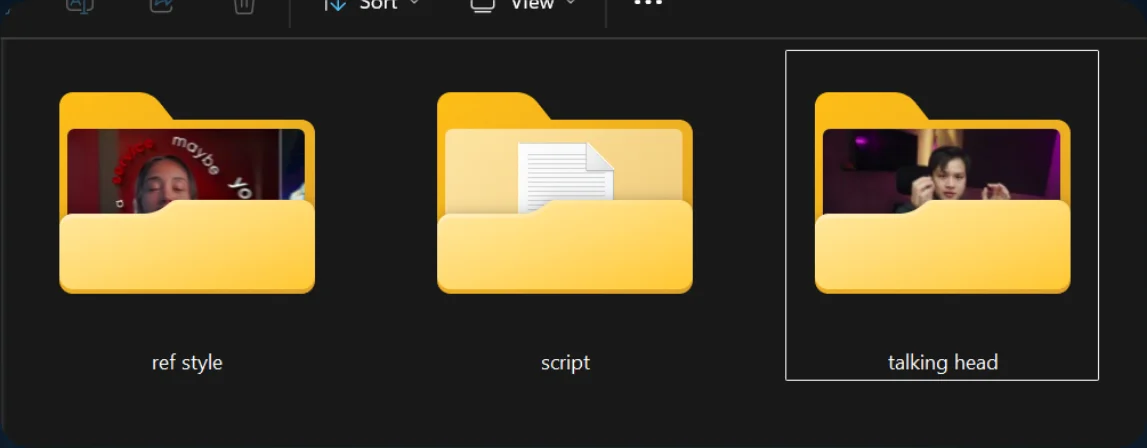
Prepare your own project folders 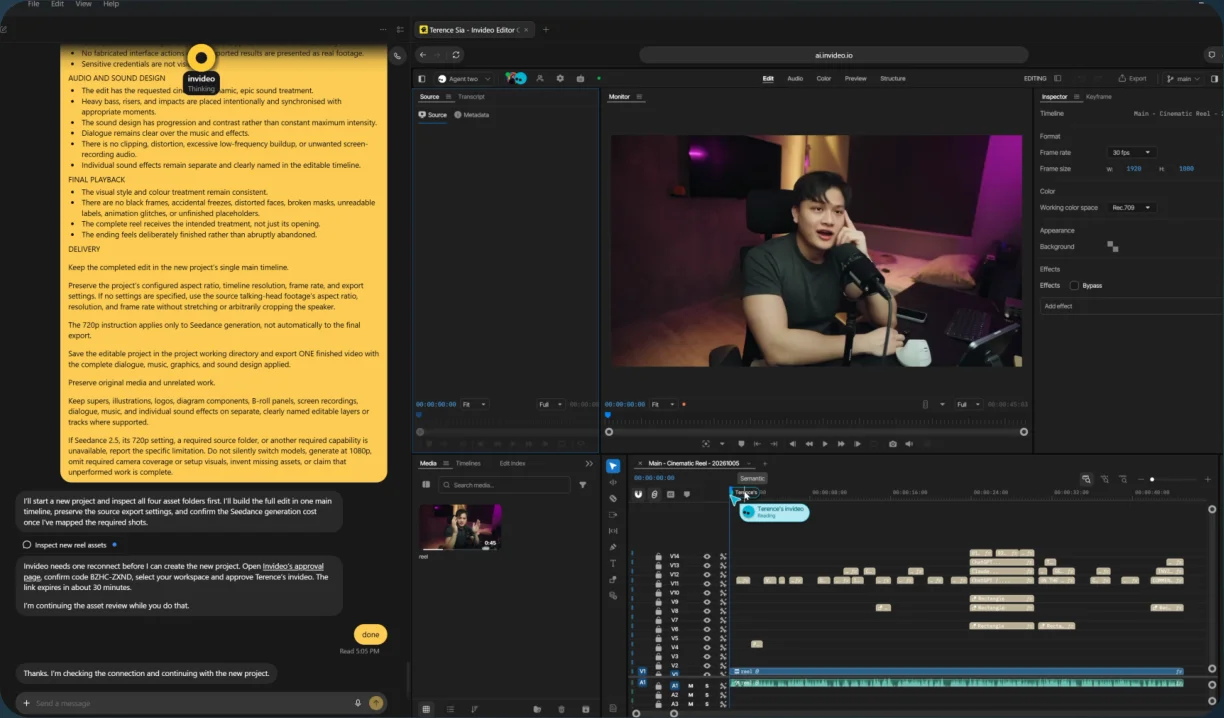
Connected editing session - 03
Refine the edit
Describe the changes you want after watching the first result.
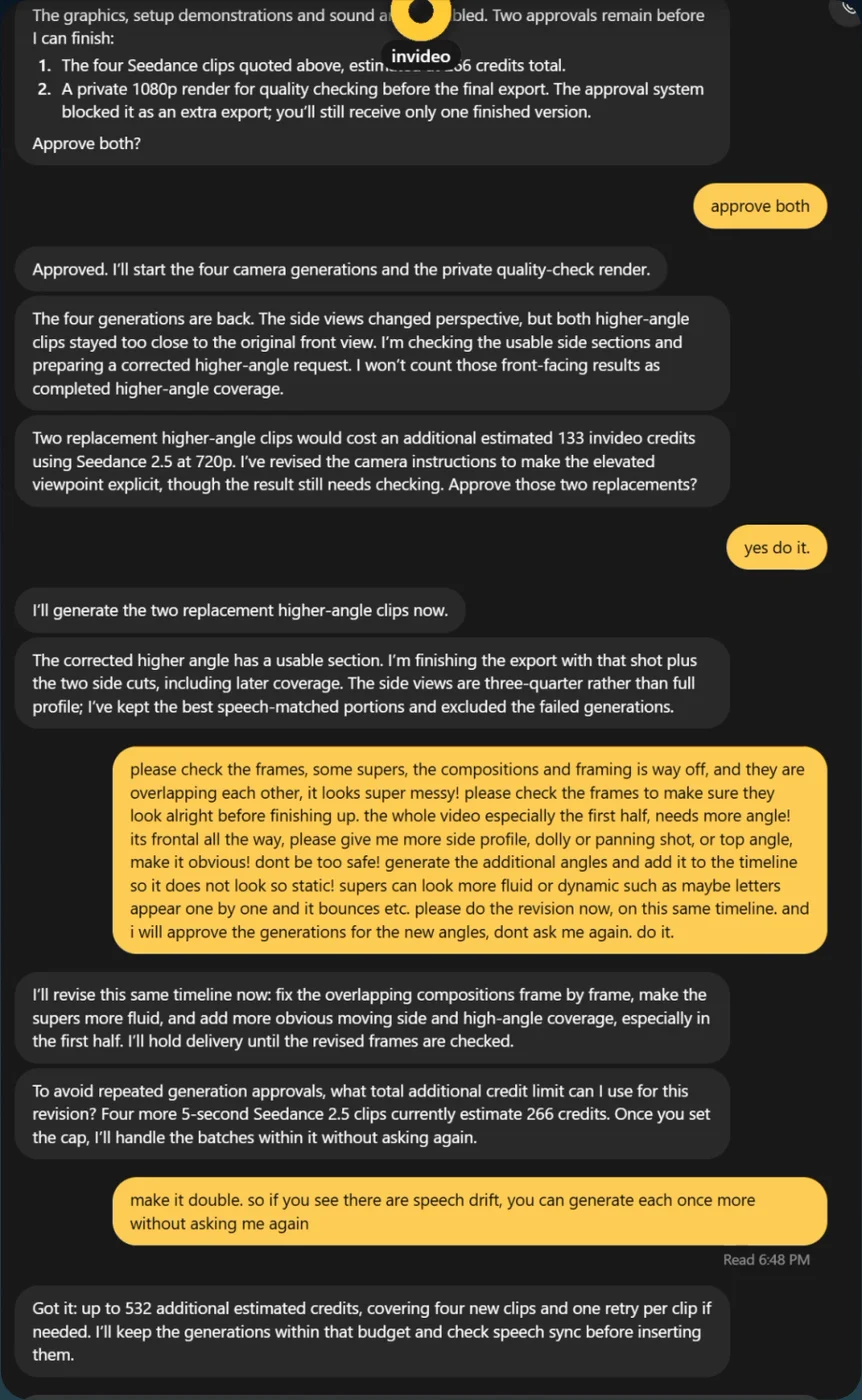
Give feedback in the chat - 04
Export
Export the finished video.
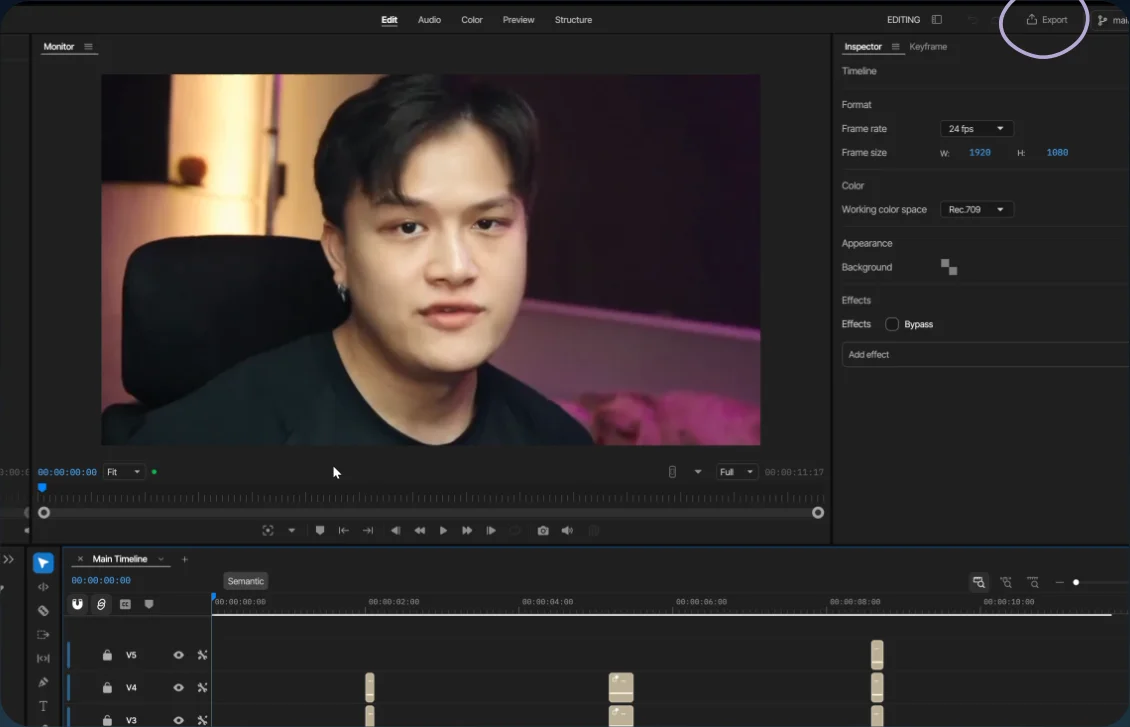
Open Export