
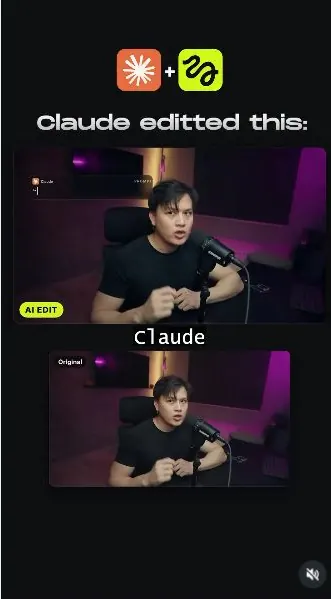
 Watch the original videoInstagram (opens in a new tab)
What you'll make
Connect Higgsfield to Claude, add your footage, and use Katana to build the edit.
Who this is for
Creators making videos with their own reference assets.
Step by step
Run the workflow
- 01
Record your video
Film the video you want to edit.
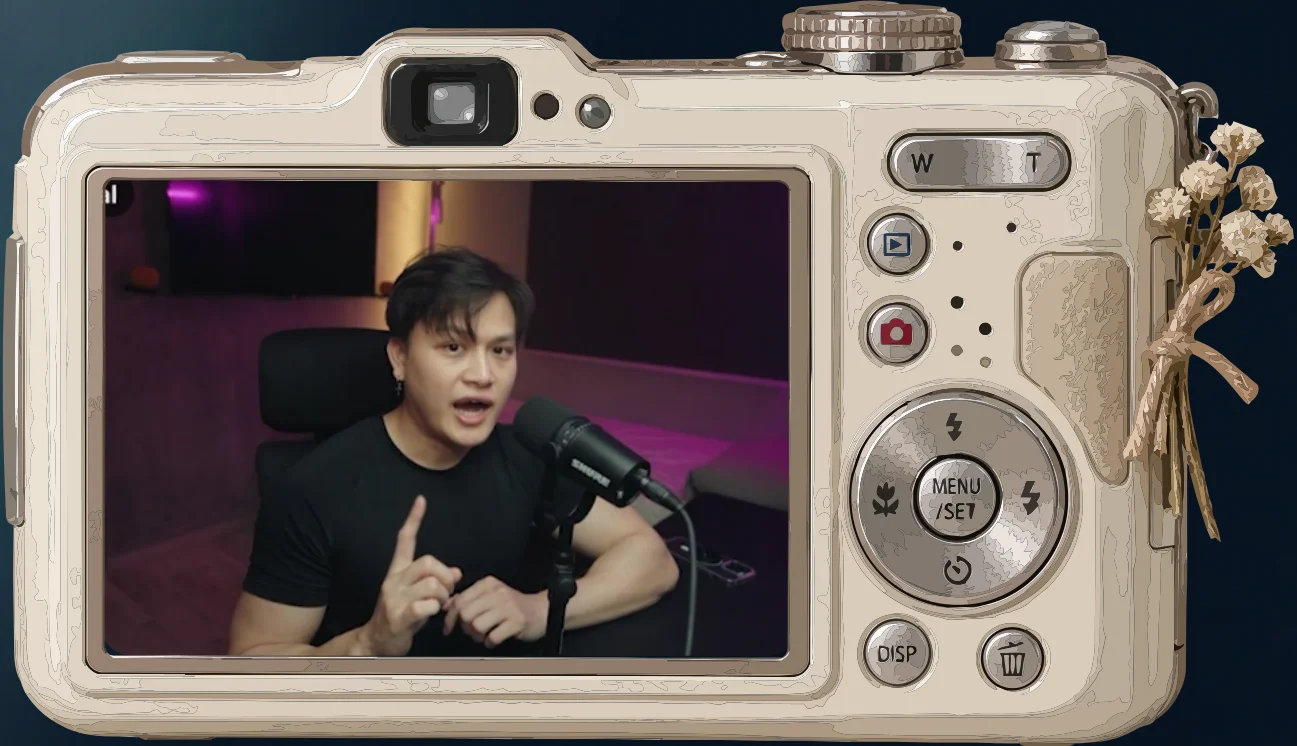
Record your footage 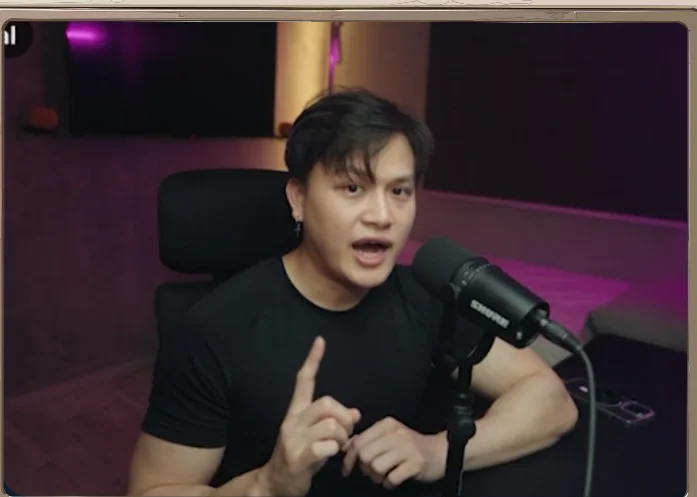
Source video - 02
Connect Higgsfield
- In Claude, open Settings, then Connectors, and choose Add custom connector.
- Enter Higgsfield AI as the name and https://mcp.higgsfield.ai/mcp as the URL. Complete the connection.
- Use an active Higgsfield subscription.
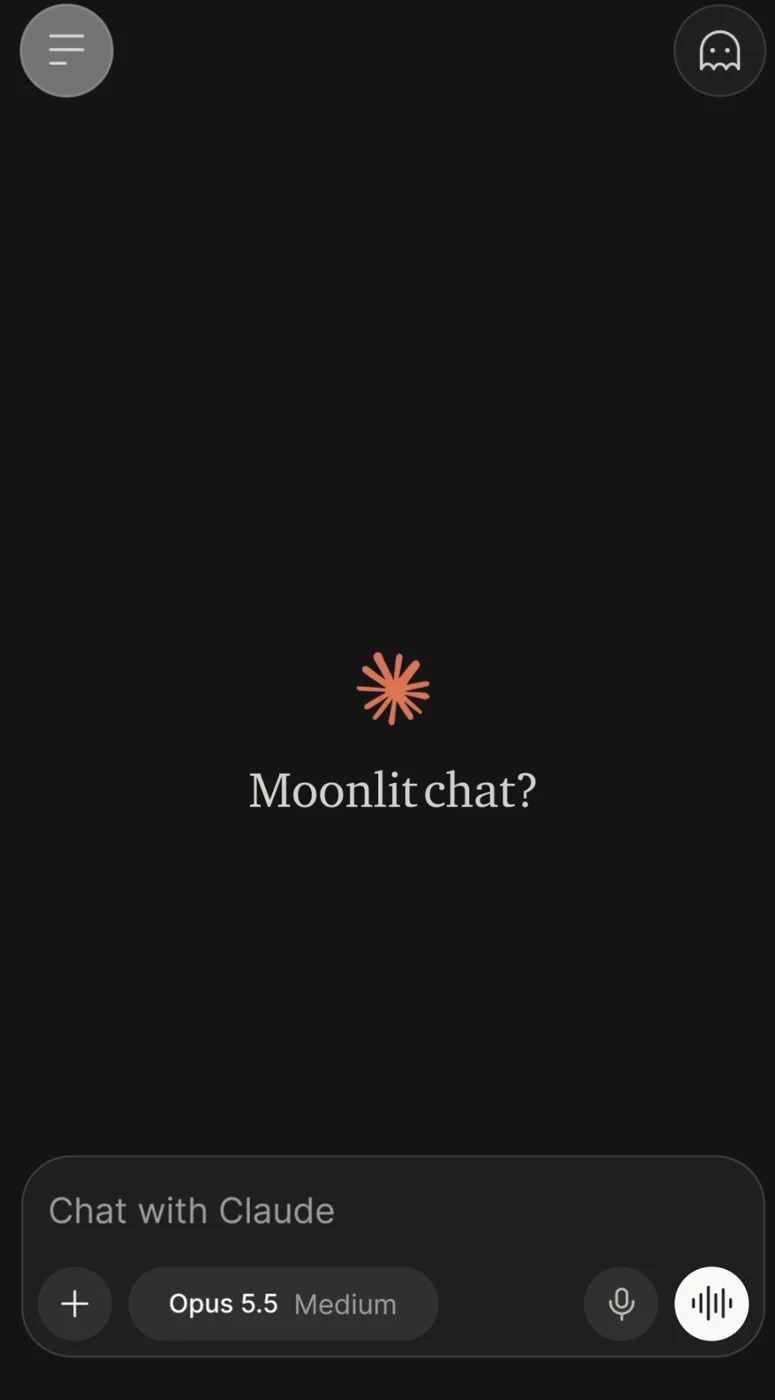
Open Claude 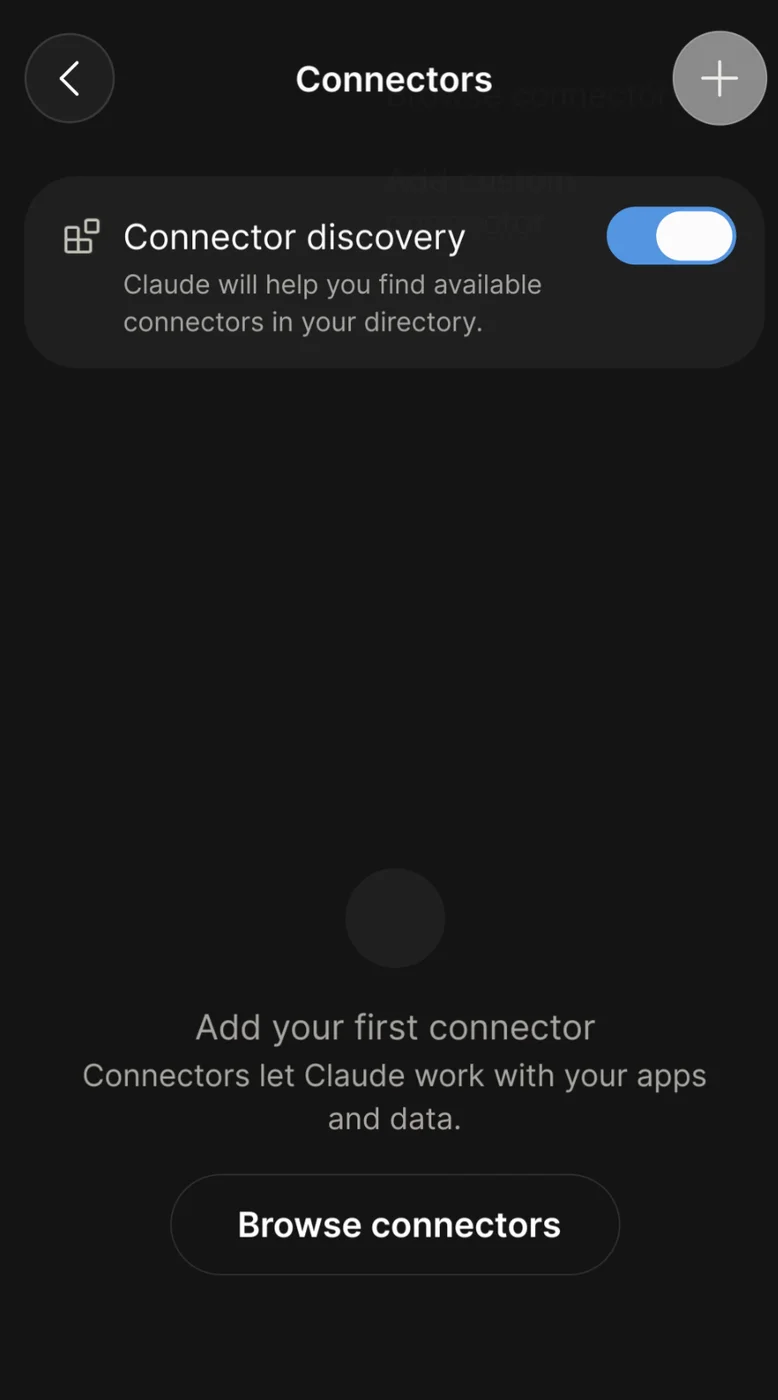
Open Connectors 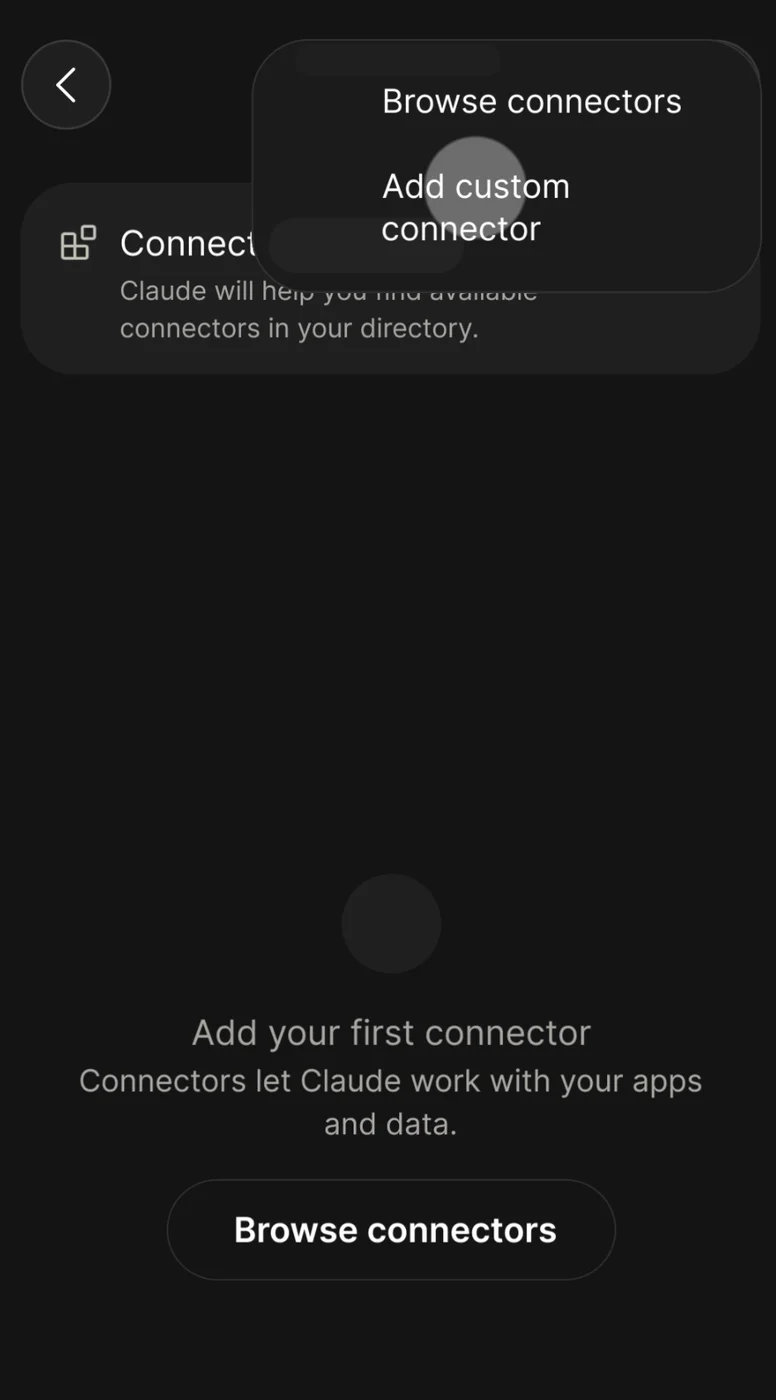
Add a custom connector 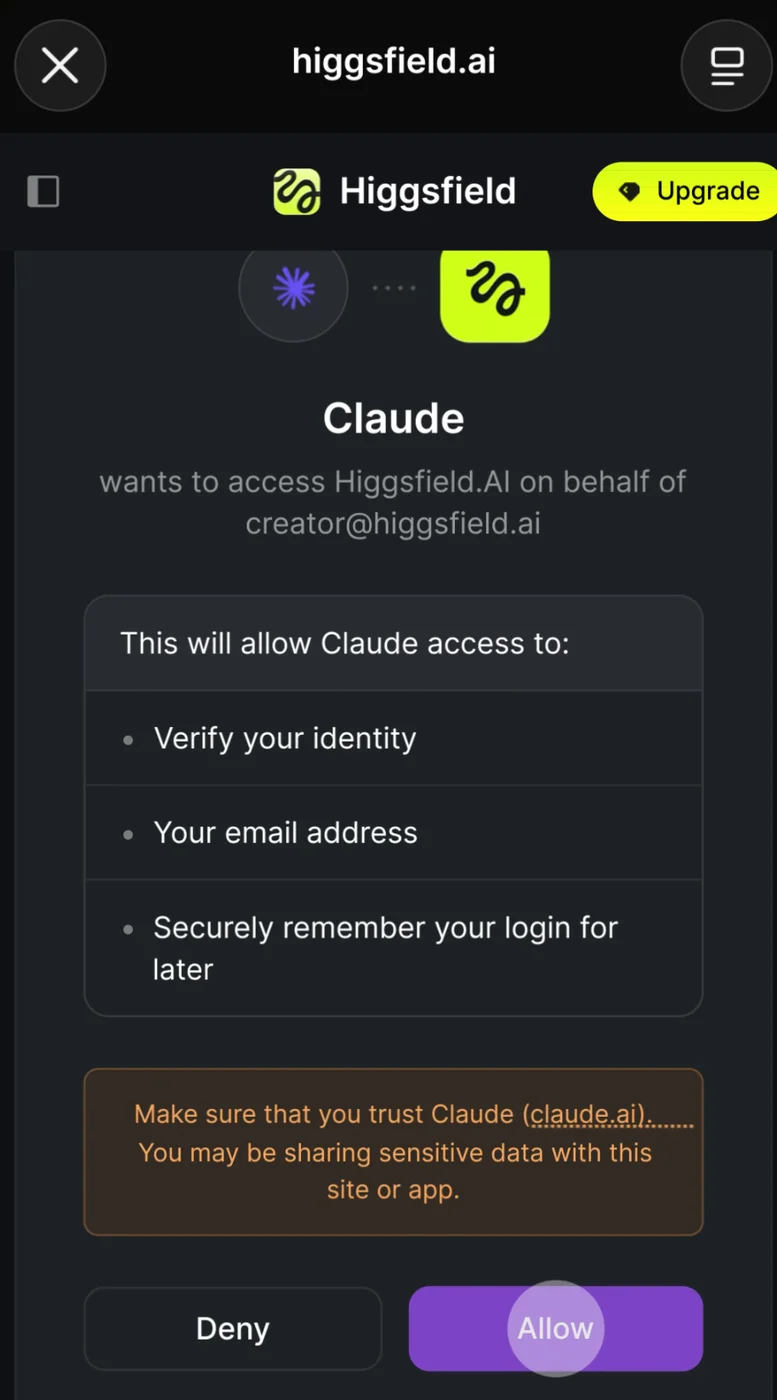
Connect Higgsfield - 03
Start the edit
- Have your footage, logos, and reference reels ready. Use the Higgsfield upload window when the agent requests files.
- Replace the bracketed inputs in the /katana prompt. Its 13 scenes are a worked example: match the speech cues and timings to your recording.
- Send the prompt. Resolve any missing files or unmatched scene cues before generating.
Show copyable prompt
Video prompt Worked example: replace every bracketed input before sending. The original scene plan is preserved below; its speech and timestamps must be matched to your actual recording, not assumed. Use Higgsfield AI /katana. Create a finished, cinematic AI edit of my supplied recording. This is an execution request, not a request for another script or editing suggestions. Use Claude and Higgsfield Katana to inspect the assets, create the required visuals, animate the graphics, assemble the edit, mix the audio, render and verify the finished videos. This is a custom edit of my footage. The references provide creative inspiration, not a shot-for-shot template. ================================================== 1. INPUT FILES AND ACCESS CHECK ================================================== MAIN RECORDING: "[YOUR MAIN RECORDING]" LOGOS: "[YOUR LOGO FILES]" REFERENCE REELS: "[YOUR REFERENCE REELS]" MY BEST REELS: "[YOUR BEST REELS]" First verify that you can actually open these files. Use accessible files or confirmed Higgsfield uploads. If a local path is inaccessible, request the missing file through the supported upload flow. For Higgsfield reference inputs, open the Higgsfield upload window and confirm the uploaded asset before generating; do not assume a chat attachment reached Higgsfield. Do not claim you inspected inaccessible folders. Inspect the recording’s video, audio, frame rate and duration. Measure my supplied file rather than assuming the example's dimensions or length. The original worked example was approximately 47.5 seconds, 1920 × 1080, 30 fps. Those are reference facts, not instructions to trim or stretch my recording. Transcribe the actual recording and identify the timing of each spoken phrase. The recording is the timing authority. Correct transcription mistakes such as brand-name misspellings, but do not change the spoken audio. Use "[YOUR PRIMARY STYLE REFERENCE]" from my supplied reference reels as the main inspiration for: - Spoken instructions triggering visible effects. - Animated editorial graphics. - Typography and visual storytelling. - Cinematic changes. - Fast but understandable pacing. Study the other supplied references for useful visual ideas. Do not copy their frames, graphics, music or another creator’s branding. For the floating-feed scene, reuse my actual clips from “my best reels”. Do not substitute unrelated stock videos. Campaign restriction: exclude recognizable protected characters or IP. In particular, do not use the fan-made Sung Jinwoo/Baruka clip in the sponsored edit. List any omitted asset and explain why. ================================================== 2. PRESERVE MY PERFORMANCE ================================================== Keep: - My original voice. - The complete spoken script. - The order of my sentences. - My identity, facial features and recognizable appearance. - Natural gestures and believable anatomy. - The original recording’s timeline and speech timing. Do not: - Rewrite or rerecord my dialogue. - Generate a replacement voice. - Add dialogue or unwanted speech. - Remove lines to make the editing easier. - Speed up, slow down or reorder my performance without asking. - Apply effects only to the opening section. - Leave the second half unfinished. Complete my full recording at its measured duration. Do not trim or stretch it to the example's 47.5 seconds. Creative changes belong in the edited version. The original comparison footage must remain visually untouched. ================================================== 3. REQUIRED OUTPUTS AND SPLIT-SCREEN FORMAT ================================================== Create one creative edit, delivered in two forms: A. AI-EDITED MASTER - 1920 × 1080. - 30 fps. - Full-length edited version. - Suitable for placing in the top panel of the comparison. B. FINAL INSTAGRAM SPLIT-SCREEN REEL - 1080 × 1920. - 30 fps. - Top: the AI-edited version. - Bottom: the original recording, labelled “Original”. - Keep both versions synchronized throughout. - Preserve sensible framing. Do not crop out my head or important gestures. - Use a deliberately designed layout with readable labels and space for the closing CTA. - Keep essential text away from Instagram’s interface areas. IMPORTANT OPENING RULE: From approximately 0.00–2.64 seconds, both panels should show the same untouched recording. Labels and branding may be present, but the footage itself must match. The first dramatic edit should begin on “Claude did”, approximately 2.64 seconds into the recording. This creates a clear before-and-after transformation while satisfying the brief. Use the supplied official watermark in the edited panel. If it is missing from my assets, flag this and request the approved watermark rather than inventing one. ================================================== 4. OVERALL CREATIVE DIRECTION ================================================== Make this feel like a premium cinematic demonstration of an AI editor, not a slideshow or generic caption template. Visual language: - Fluid kinetic typography. - Strong composition and readable hierarchy. - Motivated camera movement. - Clean editorial diagrams. - Depth, parallax and believable compositing. - Controlled cinematic grading. - Purposeful, custom-designed flash-cut and glitch accents. - Polished transitions that connect the scenes. Use charcoal, off-white and restrained cinematic colours. Introduce Claude orange and Higgsfield lime when their brands appear. Kinetic text must: - Follow the spoken words precisely. - Have intentional entrances, readable holds and clean exits. - Use convincing acceleration and deceleration. - Include tasteful overshoot and motion blur where appropriate. - Emphasize key phrases rather than turning every frame into a wall of text. Avoid: - Random stock-template glitches. - Constant shaking. - Excessive neon glow. - Slow, floaty text unrelated to my speech. - Graphics covering my eyes or mouth. - Fake statistics, invented engagement counts or arbitrary graphs. Use diagrams to explain the workflow. Do not fabricate performance data. ================================================== 5. MODEL AND RENDERING STRATEGY ================================================== Use Seedance 2.5 for generated video shots when generation is actually needed, especially camera-angle and wardrobe/environment replacements. The current model identifier is seedance_2_5, but verify its available parameters in this connection before submitting. Prefer source-based video editing for shots that must preserve my performance. Use the appropriate reference modes when necessary. Important: - Generate only the short excerpts needed for replacement shots. - Do not repeatedly submit the whole recording for individual scene changes. - Generate sufficient handles, then trim the result to the spoken beat. - Respect supported duration limits. - In video-edit mode, inspect the reference clip’s duration and aspect ratio rather than assuming a duration parameter will override them. - Request 1080p where supported. - Disable generated audio where supported. Otherwise mute it during assembly. Use motion graphics and compositing for: - Typography. - Logos. - Diagrams. - App-removal animation. - Floating video panels. - The brightness slider. - CTA graphics. - Colour grading and particles when source-based post effects are sufficient. Do not bake text and logos into generated footage. Keep them as separate graphic layers wherever possible. A side angle must genuinely change the viewpoint. A top-down angle must genuinely place the camera above me. Do not label a crop, zoom or rotated frame as a new camera angle. Preserve identity and lip synchronization in generated talking shots. Check the mouth, hands, clothing, body proportions and continuity. If a requested shot cannot be generated convincingly with Seedance 2.5, explain the specific limitation and ask before switching models. Do not silently substitute a model or pretend the shot succeeded. Respect all credit confirmations. Do not bypass approval or run unlimited paid retries. ================================================== 6. SCENE-BY-SCENE EDIT ================================================== The 13 scenes below preserve the original worked example. Their quoted speech, timestamps, opening trigger and CTA are example cues, not measurements of my file. First map each scene to my actual transcript and waveform. Retain the creative treatment and order. If a required spoken cue is absent, ask me to confirm a matching line or provide a matching recording before executing; do not invent dialogue, change the voice track, silently omit a scene, or force the example timestamps onto my recording. Apply the confirmed cue mapping to the opening rule and all scenes. SCENE 1 , OPENING TRANSFORMATION Approximately 0.00–3.52 “I didn’t edit a single second of this video. Claude did!” - Keep the footage identical in both panels until “Claude did”. - On “Claude did”, activate the edited top panel with an epic punch-in and a short, controlled flash-cut burst. - Introduce the supplied Claude icon or mascot with a confident pop, wave-like motion and a brief glitch accent. - Animate “CLAUDE DID” as a strong kinetic super. - Recover quickly into a clean, readable composition. - Add a synchronized impact and short digital activation sound. - Do not use prolonged or rapidly repeating full-screen strobing. SCENE 2 , NO MANUAL EDITING APPS Approximately 3.52–5.84 “No CapCut. No Edits app. Nothing.” - Use my supplied CapCut, Instagram Edits and Premiere logos. - Present them as app tiles with depth and a subtle phone-home-screen-style jiggle. - Remove CapCut on “No CapCut”. - Remove Edits on “No Edits app”. - Remove the remaining Premiere tile on “Nothing”. - Make each removal feel deliberate, with its own animation and small sound accent. - This is only an animation. Do not uninstall, modify or operate any real application. SCENE 3 , ONE PROMPT BECOMES AN EDIT Approximately 5.84–8.16 “One prompt, and the whole video is edited.” - Animate one prompt card transforming into an assembled filmstrip or editing sequence. - Use previews of my actual footage. - Show a clear visual relationship: instruction → assembled edit. - Emphasize “ONE PROMPT”. - Do not invent a fake processing timer or promise an unverified completion time. SCENE 4 , MAKE IT CINEMATIC Approximately 8.16–13.28 “Watch. Claude, make it more cinematic, and the scene changes.” - Show the instruction appearing as a designed prompt overlay. - Visibly change the top panel as the command is spoken. - Introduce a tasteful teal-shadow/warm-highlight grade, preserving believable skin tones. - Add subtle atmospheric dust, film texture, controlled lens bloom and restrained anamorphic-style highlights. - Introduce a smooth cinematic push or other motivated movement. - Keep my face sharp and recognizable. - Prefer grading and compositing over unnecessary regeneration. - Make the transformation obvious compared with the unchanged bottom panel. SCENE 5 , MY BEST VIDEOS BEHIND ME Approximately 13.28–16.00 “Put my best video behind me.” - Use the suitable clips from my “my best reels” folder. - Create a floating Instagram-feed-inspired wall of moving video panels behind me. - Use restrained holographic edges, depth, perspective and parallax. - Composite me in front of the panels with convincing occlusion and clean edges. - Play the actual supplied clips, not just static thumbnails. - Keep every background clip muted. - Do not invent view counts or comments. - Do not obscure my face with a foreground panel. SCENE 6 , SIDE ANGLE Approximately 16.00–18.72 “Now show me from a side angle.” - Create a convincing side/three-quarter camera view using Seedance 2.5. - Retain the same person, clothing continuity, scene and performance. - Match the timing of the original dialogue. - Transition into the new angle as I request it. - Use a directional camera-movement sound. - A horizontal slide or crop is not an acceptable substitute. SCENE 7 , TOP-DOWN ANGLE Approximately 18.72–21.44 “Now give me a top-down shot.” - Create a genuine overhead view of me and the surrounding scene. - Preserve recognizable identity and plausible body/desk/chair geometry. - Keep gestures and speech aligned with the source. - Use a motivated upward camera transition into the overhead composition. - Do not simply rotate the original frame. SCENE 8 , MAKE IT DARKER Approximately 21.44–23.04 “Make the video darker.” - Animate a clear brightness/exposure slider. - Have the supplied Claude mascot move the slider toward a darker setting. - Synchronize the actual darkening of the top panel with the slider. - Preserve detail in my face and shadows. - Make it moody, not crushed or unreadable. - Add a tactile slider movement sound. SCENE 9 , RAW FOOTAGE AND A PROMPT Approximately 23.04–29.92 “I don’t even need to know how to do these. I just upload my raw footage with a prompt. Claude and Higgsfield Katana handle the edit.” - Create a polished, animated workflow demonstration. - A preview card containing my raw footage enters. - A prompt card joins it. - Both connect to the supplied Claude and Higgsfield Katana brand graphic. - Animate the production stages: visuals → animation → render. - Reveal a preview of the actual edited result. - Show the corresponding supplied logos when their names are spoken. - Use clean nodes, connecting lines and smooth transformations. - Keep this a readable visual explanation, not a fake screenshot of software. SCENE 10 , DIFFERENT PRODUCTION USE CASES Approximately 30.16–35.68 “And it’s not just for videos like this. Reels, sales ads, product launches, stylized edits.” Create four distinct visual changes timed to the four terms: REELS: - A creator-focused social-video scene. - Casual contemporary styling, phone/camera elements and a lively vertical-feed motif. SALES ADS: - A polished commercial-presenter scene. - Appropriate wardrobe and an original, unbranded product prop or product composition. PRODUCT LAUNCHES: - A premium launch-stage or product-reveal scene. - Keynote-presenter styling and cinematic lighting. - No imitation of a recognizable celebrity or copyrighted character. STYLIZED EDITS: - A bold fashion/music-video-inspired treatment. - Distinct wardrobe, graphic motion and lighting. Preserve my identity and performance throughout. Make the four changes clearly different rather than changing only the text. Use Seedance 2.5 where wardrobe or environment replacement is necessary, then add the typography separately. Each transition should have a purposeful sound accent. SCENE 11 , WITH FOOTAGE / WITHOUT FOOTAGE Approximately 35.68–40.96 “If you have footage, it edits it. If you don’t, it generates the footage first, then edits it.” - Create an elegant two-branch animated diagram. - Branch A: my existing footage → AI editing → finished result. - Branch B: a text brief → generated visual footage → AI editing → finished result. - Activate each branch exactly when I describe it. - Use actual output previews where available. - For the generated-footage branch, reuse a suitable newly generated asset from this project, or create a short original example if necessary and authorized. - Avoid numbers, fake metrics or unsupported claims. SCENE 12 , CREATIVE DIRECTION Approximately 40.96–45.20 “Now I can focus on the creative direction instead of building every effect myself.” - Present me as the person directing the creative decisions. - Build a tasteful director/control-panel-inspired composition around my performance. - Animate choices such as mood, camera, typography and pacing. - Show Claude/Katana handling the production stages beneath those decisions. - Keep the visual message clear: I make the creative decisions; AI performs the production work. - Resolve the composition confidently rather than introducing another unrelated montage. SCENE 13 , COMMENT AI Approximately 45.20–47.50 “Comment AI and I’ll send you the step-by-step guide.” - Land on a clean, high-impact closing composition. - Animate “COMMENT AI” prominently. - Add a simple comment-bubble gesture and a compact workflow-guide graphic. - Keep my face visible. - Finish with a clean musical and visual resolution. Do not change my spoken CTA. Optional campaign offer: "[YOUR VERIFIED OFFER, OR NONE]" If I supply verified offer text, display it readably during the closing section without rerecording. If NONE, omit the offer overlay. Do not invent or reuse an unverified trial, discount, or eligibility claim. Keep this offer clear, not microscopic. It can appear before the final spoken CTA so viewers have enough time to read it. ================================================== 7. AUDIO DESIGN ================================================== Use my original dialogue once. Do not duplicate the audio when creating the split screen. Add: - A properly licensed cinematic instrumental music bed. - Impacts for major reveals. - Whooshes for camera movements. - Short digital accents for Claude, logos and prompt interactions. - App-removal clicks. - A subtle slider sound. - Risers leading into major transitions. Keep the voice clear and dominant. Duck music and effects under speech. Every significant edit or transition should have an appropriate sound event, but do not use the same loud bass impact repeatedly. Keep dialogue, music and individual SFX as separate editable audio assets/events in the working project. Do not combine all SFX into one file. Do not rip the reference’s soundtrack or synthesize replacement speech. Use licensed music and SFX, with provenance recorded. Check loudness and clipping. Aim for a controlled social-media mix around −14 LUFS integrated, with true peak no higher than −1.5 dBTP. ================================================== 8. WORKING FILES AND OUTPUTS ================================================== Use a new working folder under: "[YOUR WORKING FOLDER]" If that folder already contains work, use a fresh versioned folder rather than overwriting it. Keep: - Source-file inventory. - Speech transcript and timing. - Scene plan/timeline. - Generated assets. - Generation prompts and model/job IDs. - Logos and prepared graphic assets. - Separate music and SFX. - Renderable project/source code. - An asset/provenance manifest. - Preview renders and final exports. Never overwrite, move or delete the supplied recordings or asset folders. If you work in a cloud environment that cannot write to my Windows folders, deliver the project and assets as a downloadable bundle. Do not claim they were saved locally. Export: 1. Katana_AI_Edit_1920x1080.mp4 2. Katana_Split_Reel_1080x1920.mp4 These are two exports of the same creative edit, not two unrelated variations. ================================================== 9. EXECUTION AND QUALITY CHECK ================================================== Before generating: - Confirm file access. - Inspect the main recording and references. - Match the scene plan to the actual speech. - Resolve current Katana instructions and model constraints. - Identify missing required assets or credit confirmations. Once those requirements are satisfied, execute the edit. Do not stop after giving me a plan. Use sensible creative defaults rather than asking me to choose every animation, font or transition. Inspect a representative preview before rendering the full video. After rendering, verify: - The complete recording is covered. - Original dialogue is unchanged. - Top and bottom are synchronized. - The first few seconds match before the edits begin. - Each spoken instruction produces the corresponding visible effect. - Side and overhead angles are genuine. - Generated shots preserve identity, anatomy and usable lip sync. - Logos and text are spelled correctly and remain readable. - No reference footage or protected character/IP has slipped into the result. - Music and SFX do not cover the dialogue. - There are no black gaps, frozen unfinished shots or broken overlays. - The watermark and CTA are present. - Both exports have the correct dimensions, frame rate and duration. Fix targeted problems rather than restarting the entire project. Do not run endless paid regeneration loops or bypass credit approvals. Deliver the verified videos and the working-project bundle. List any unresolved problem honestly. Do not label an incomplete preview as the finished result.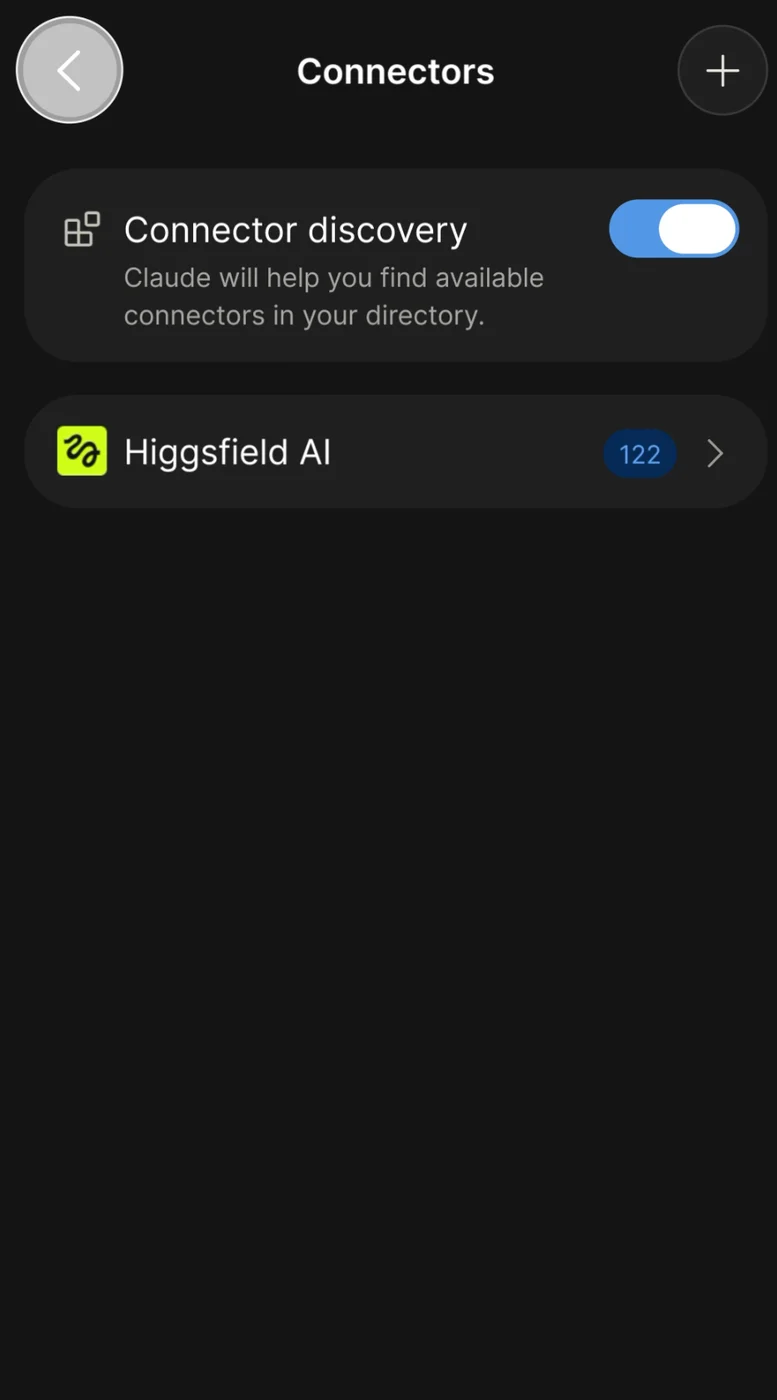
Connected Higgsfield 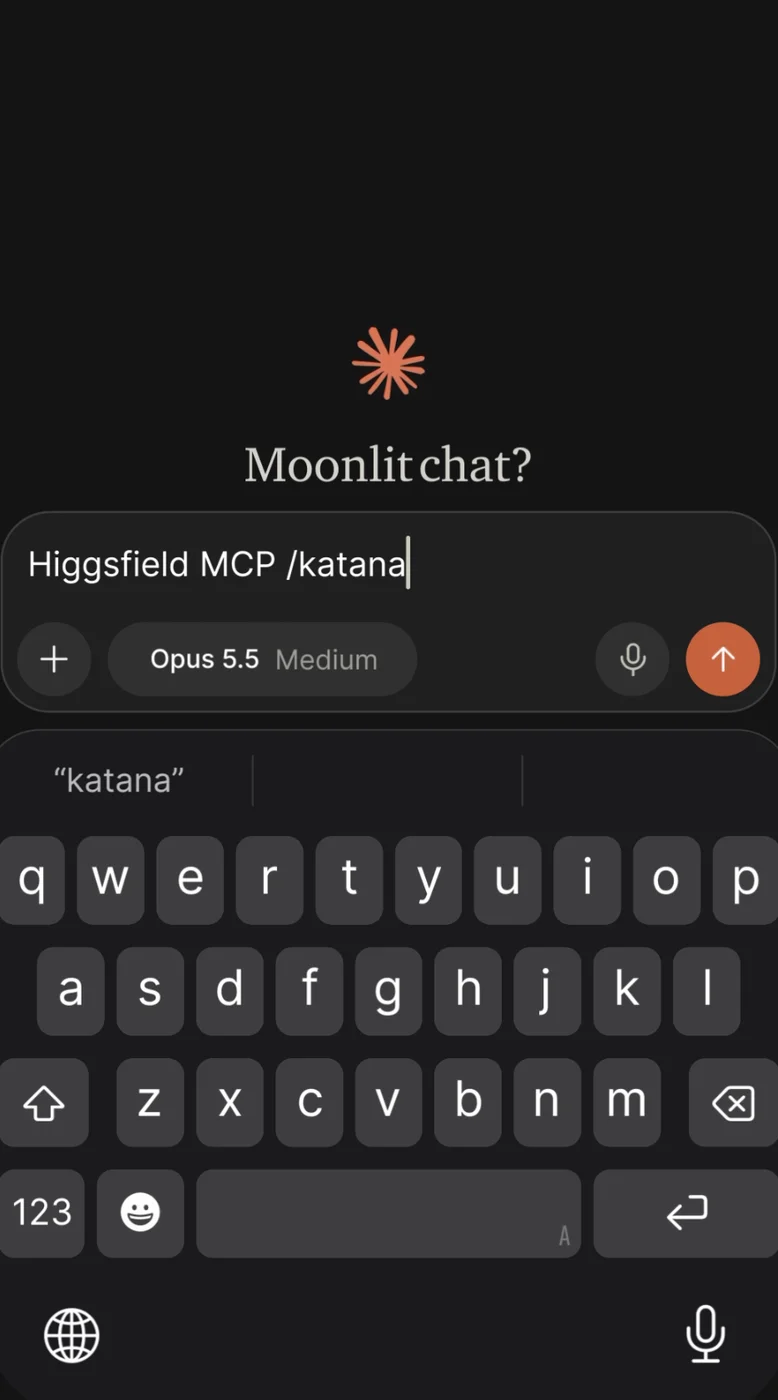
Start Katana in the chat - 04
Refine the result
Describe any changes you want after watching the video.
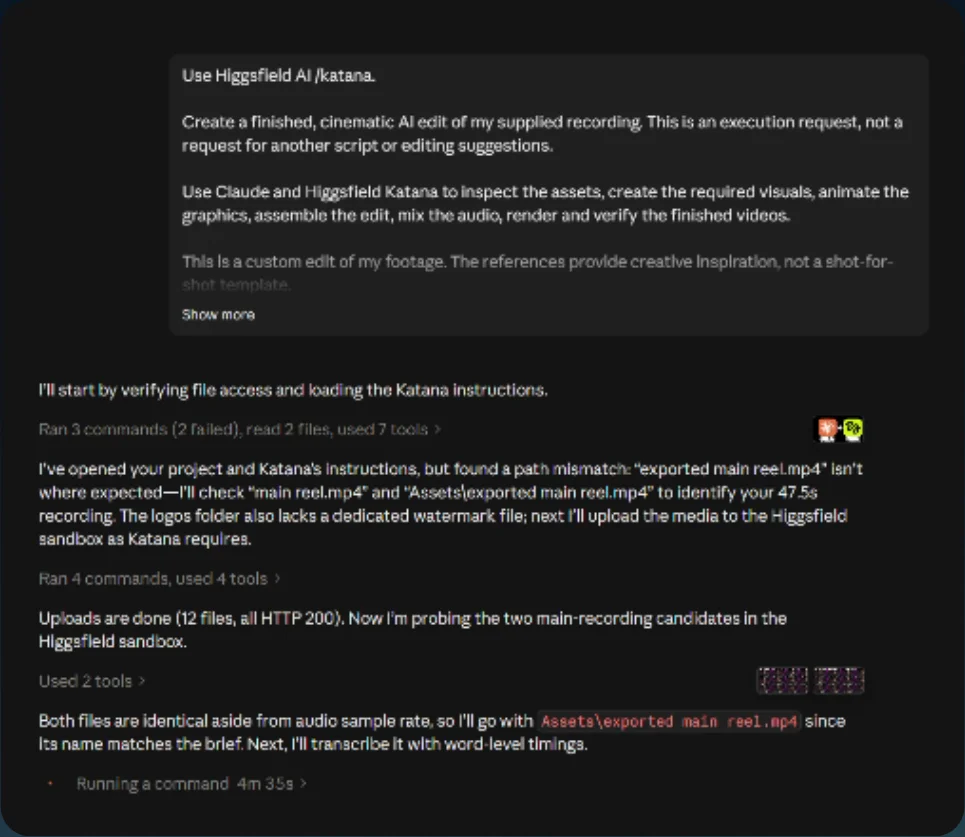
Katana builds the edit 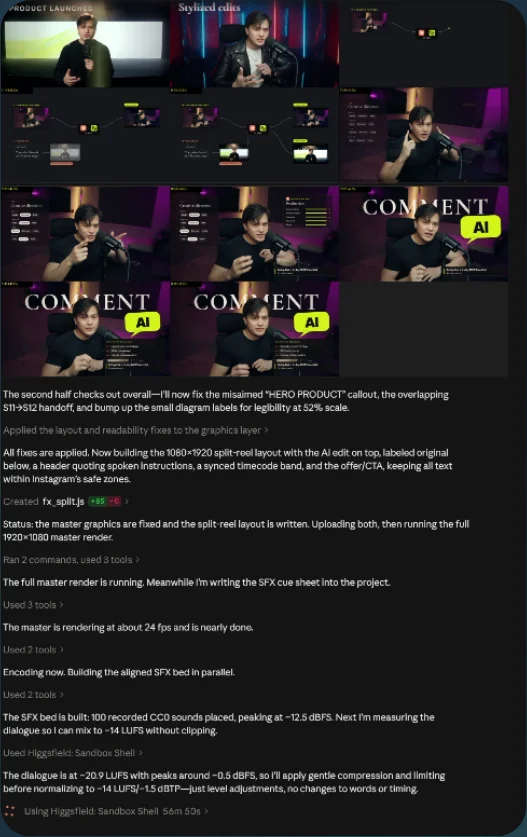
Edited result