
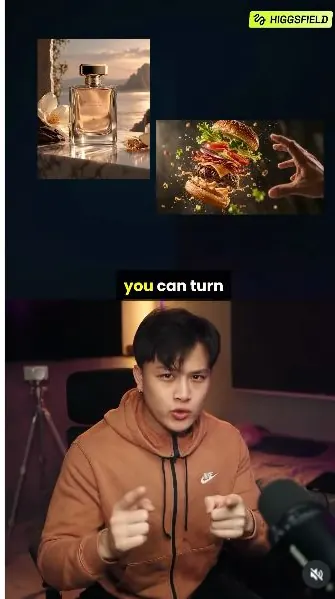
 Watch the original videoInstagram (opens in a new tab)
What you'll make
One playable generated video inside ChatGPT.
Run one Higgsfield command in ChatGPT.
Who this is for
Anyone using Higgsfield inside ChatGPT.
Step by step
Run the workflow
- 01
Add Higgsfield to ChatGPT
Add the plugin and sign in.
- Click here to add Higgsfield to ChatGPT (opens in a new tab)SIA's creator-tracked setup link. The campaign brief offers eligible new users a three-day plugin trial; confirm eligibility at sign-up.
- Open the tracked setup link below and click Add Higgsfield plugin.
- Sign in with your Higgsfield account, then start a new ChatGPT conversation.
Common failure modes- If Higgsfield is missing, reopen the setup link and complete Add and sign-in.
- 02
Upload the right asset
Select Higgsfield and add the image or video your command needs.
- In the ChatGPT mobile app, select Higgsfield in the message box.
- Check the command's Use with note, then upload that image or video.

- Uploaded image
- Higgsfield + command
- Send
Common failure modes- If Higgsfield appears only as plain text, select the plugin again before sending.
- 03
Type the slash command
Run the effect.
- Type the tag and slash command exactly as shown, for example @Higgsfield /productexplosion.
- Send it and wait for the generated video to play inside the chat.
18 commands
@Higgsfield /productexplosionSeparate and reassemble the product in an exploded-view effect.
- Use with
- A clear, fully visible product image.
@Higgsfield /fpvdroneCreate fast FPV-style movement through a landscape.
- Use with
- A valley, coastline or winding forest-road photo.
@Higgsfield /tvcommercialApply a commercial-style product treatment.
- Use with
- A product photo such as perfume, footwear or a beverage.
@Higgsfield /earthzoomCreate a location-to-Earth zoom effect.
- Use with
- An outdoor location, building or landmark photo.
@Higgsfield /slowmotionTurn a visible action into a slowed-motion sequence.
- Use with
- An action photo such as a splash or bursting balloon.
@Higgsfield /povReframe the action from a specified point of view.
- Use with
- An image or video with a clear action and setting.
@Higgsfield /360Move the camera around the subject to show its shape.
- Use with
- A fully visible subject with clear space around it.
@Higgsfield /dollyzoomCreate a dolly-zoom perspective effect.
- Use with
- A subject with a deep background.
@Higgsfield /spiralshotMove around the subject in a spiral.
- Use with
- A subject in open surroundings.
@Higgsfield /glambotCreate a glamorous slow-motion-style shot.
- Use with
- A person with flowing hair or fabric.
@Higgsfield /ugcCreate a creator-style product shot.
- Use with
- A person holding a product, with both face and product visible.
@Higgsfield /thirdpersonviewShow the action from a third-person viewpoint.
- Use with
- A video showing the full person and the surroundings.
@Higgsfield /gimbalshotCreate smooth gimbal-style camera movement.
- Use with
- A scene with depth and room for the camera to move.
@Higgsfield /flyoverCreate an aerial pass over the scene.
- Use with
- A wide outdoor photo.
@Higgsfield /zoomoutPull back to reveal the surroundings.
- Use with
- A subject inside a recognisable setting.
@Higgsfield /orbitshotCreate an orbiting camera shot.
- Use with
- One fully visible subject with clear surroundings.
@Higgsfield /macrozoomMove into a close material detail.
- Use with
- A sharp image with visible texture or fine detail.
@Higgsfield /macrorevealBegin close and reveal the full subject.
- Use with
- A full subject with a distinctive visible detail.
Common failure modes- If you get a still image or the command does not run, reselect Higgsfield and send one listed command again.
Before you use it
Final checks
- Commands and costs can vary by account.
- The campaign trial is for eligible new users; confirm the current offer at sign-up.
- Check the finished video for changed faces, products, logos or text.