
 Watch the original videoInstagram (opens in a new tab)
What you'll make
A checked final video that follows the source workflow and is ready for export.
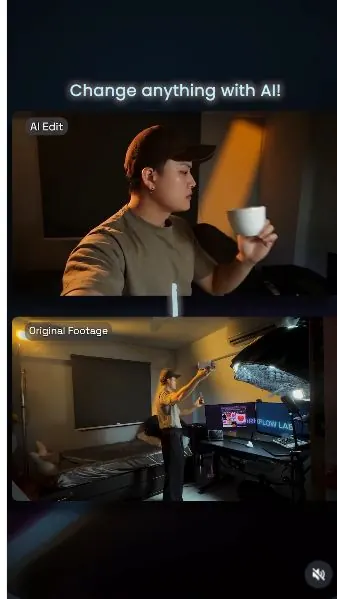
Replace scenes inside an existing video
Who this is for
Creators, marketers, founders, and small teams producing short AI-assisted videos from source media.
Step by step
Run the workflow
- 01
Review the workflow
Use the source inputs to complete this stage and produce a result that can be checked before continuing.
complete workflow I used to create this video.

Use this visual to confirm the expected setup or result. 
Use this visual to confirm the expected setup or result. Common failure modes- The generated scene changes the person, camera, room, product, or timing beyond the requested effect.
- Fast motion hides face, hand, clothing, text, or continuity errors that become visible when the clip is paused.
- 02
Prepare the files and tools
Use the source inputs to complete this stage and produce a result that can be checked before continuing.
- Preparation Preparation
- Record a talking video of yourself.
- Export out only the portion you want to do the vfx on if your video is too long.

Use this visual to confirm the expected setup or result. 
Use this visual to confirm the expected setup or result. Common failure modes- The generated scene changes the person, camera, room, product, or timing beyond the requested effect.
- Fast motion hides face, hand, clothing, text, or continuity errors that become visible when the clip is paused.
- 03
Phase 1+2: Gemini Omni
Use the source inputs to complete this stage and produce a result that can be checked before continuing.
- Click here to open Google Flow (opens in a new tab)Direct link supplied in the source. Source page 5.
- Import the video clip you want to edit into Gemini Omni
- Insert my reference prompt with the original video and click generate.

Check the prompt field, reference order, and visible settings. 
Check the prompt field, reference order, and visible settings. 
Check the prompt field, reference order, and visible settings. 
Check the prompt field, reference order, and visible settings. 
Use this source result as the visual comparison point for the step. 
Use this source result as the visual comparison point for the step. Common failure modes- The generated scene changes the person, camera, room, product, or timing beyond the requested effect.
- Fast motion hides face, hand, clothing, text, or continuity errors that become visible when the clip is paused.
- 04
He took a bite on the apple DO NOT CHANGE THE MOTION OF THE
Use the source inputs to complete this stage and produce a result that can be checked before continuing.
- Copy the prompt below and replace any project-specific subject, product, location, or format details.
- Attach the source assets in the same order described by the prompt, then run one controlled test.
Working assetHe took a bite on the apple DO NOT CHANGE THE MOTION OF THE prompt Keep the original man completely consistent: same identity, face, hairstyle, expression, body, clothing, position, and proportions. Preserve the original environment, computer, desk, lighting, camera angle, framing, and video quality. Do not change the hand or the screen! As his hand approaches the screen, His hand then grips a photorealistic red apple inside the screen and pulls it smoothly into the real environment. The apple must remain identical in size, color, texture, and shape throughout the shot. he took a bite on the apple DO NOT CHANGE THE MOTION OF THE VIDEO
Check the prompt field, reference order, and visible settings. 
Check the prompt field, reference order, and visible settings. 
Check the prompt field, reference order, and visible settings. Common failure modes- The generated scene changes the person, camera, room, product, or timing beyond the requested effect.
- Fast motion hides face, hand, clothing, text, or continuity errors that become visible when the clip is paused.
- 05
Edit the source video with one timed environment transformation
Use the source inputs to complete this stage and produce a result that can be checked before continuing.
- Copy the prompt below and replace any project-specific subject, product, location, or format details.
- Attach the source assets in the same order described by the prompt, then run one controlled test.
Working assetEdit the source video with one timed environment transformation prompt Edit the source video with one timed environment transformation. Immediately hard cut with no transition and replace the entire surrounding environment with a busy ancient Chinese dynasty street in broad daylight. Keep the man completely unchanged throughout: preserve his exact identity, face, facial features, hairstyle, expression, body, clothing, pose, gestures, finger flick, movement, position, scale, speech, lip-sync, voice, timing, and performance. Do not dress him in historical clothing or alter his appearance. Instantly place him naturally in the center of a lively historical Chinese market street with people speaking in chinese. pointing fingers at him, sounding shocked. Include period-accurate wooden buildings, tiled roofs, hanging fabric banners, market stalls, baskets, carts, merchants, pedestrians, guards, and townspeople wearing varied traditional clothing. Remove all modern objects, signs, vehicles, architecture, and technology. The street should be crowded and active, but the man must remain clearly visible. Nearby townspeople notice his modern appearance and look toward him with confused, suspicious, or surprised expressions. Some pause mid-action or quietly turn their heads, but nobody touches, attacks, or blocks him. Change the environmental lighting after the flick to bright natural daylight with warm sunlight, realistic outdoor shadows, atmospheric depth, and matching light wrapping around the man. Relight him only as necessary to integrate him into the daylight scene without changing his face, skin tone, clothing color, or appearance. Preserve the original camera angle, framing, camera movement, duration, and audio timing. Do not change the man, his speech, or his actions. Only replace the environment, background activity, ambient sound,
Check the prompt field, reference order, and visible settings. 
Check the prompt field, reference order, and visible settings. Common failure modes- The generated scene changes the person, camera, room, product, or timing beyond the requested effect.
- Fast motion hides face, hand, clothing, text, or continuity errors that become visible when the clip is paused.
- 06
Use the reference image
Use the source inputs to complete this stage and produce a result that can be checked before continuing.
- Copy the prompt below and replace any project-specific subject, product, location, or format details.
- Attach the source assets in the same order described by the prompt, then run one controlled test.
Working assetUse the reference image prompt Edit the source video so the man raises both hands naturally at the same time instead of holding a selfie. use the reference image Preserve the exact man from the source video: same identity, face, facial features, hairstyle, expression, body proportions, clothing, speech, voice, lip-sync, timing, and overall performance. Keep both arms anatomically correct with realistic shoulders, elbows, wrists, hands, and fingers. Do not create extra limbs or distorted hands. Use a stable handheld medium-wide shot that clearly shows his upper body and both raised hands inside the frame. Add only subtle natural handheld movement, as though a friend is filming him on a phone. He should look toward the camera operator naturally. Preserve the original environment, lighting, scene activity, duration, and speech. Do not change his face, clothing, dialogue, or location. Only change the arm action so both hands are raised and adjust the framing to a believable third-person camera perspective.
Check the prompt field, reference order, and visible settings. 
Check the prompt field, reference order, and visible settings. Common failure modes- The generated scene changes the person, camera, room, product, or timing beyond the requested effect.
- Fast motion hides face, hand, clothing, text, or continuity errors that become visible when the clip is paused.
Before you use it
Final checks
- Check the full result for changed people, products, text, timing, or layout.
- Confirm the tool, model, controls, and cost before generating.
- Keep private or unreleased material out of third-party tools.
Share your work
Made it? Show me.
Post your finished result on Instagram and tag @terencesia. I'll share a few standout results with the community.
Tag @terencesia on Instagram (opens in a new tab)Next step
Run one low-cost test, record the first visible failure, and revise only the instruction or source asset tied to that problem.
Back to the tutorial library