
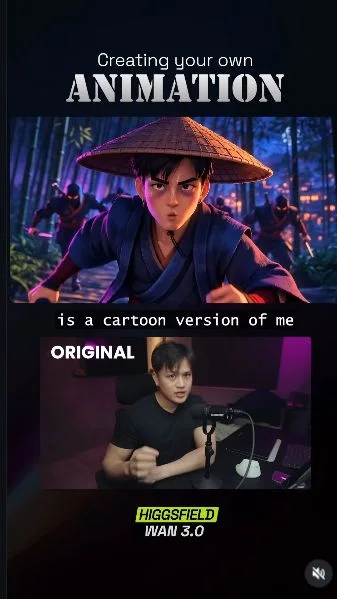
 Watch the original videoInstagram (opens in a new tab)
What you'll make
An animated version of your recording, in the style you choose.
Use Claude to direct the Wan 3.0 generation through Higgsfield MCP and Katana.
Who this is for
Creators with a short speaking clip and a character or style reference.
Step by step
Run the workflow
- 01
Connect Higgsfield to Claude
Already connected?
Skip to step 2- Click here to open Higgsfield (opens in a new tab)This guide accompanies a Higgsfield partnership. You need a Claude account and Higgsfield access; MCP generations use credits.
- Open Higgsfield with the link above, then choose MCP from the navigation. Select Claude, then Connect Higgsfield.
- In Claude, check that the connector is Higgsfield and the address is https://mcp.higgsfield.ai/mcp. Choose Continue, then Add.
- Complete the Higgsfield sign-in if prompted, then return to Claude with the connector enabled.
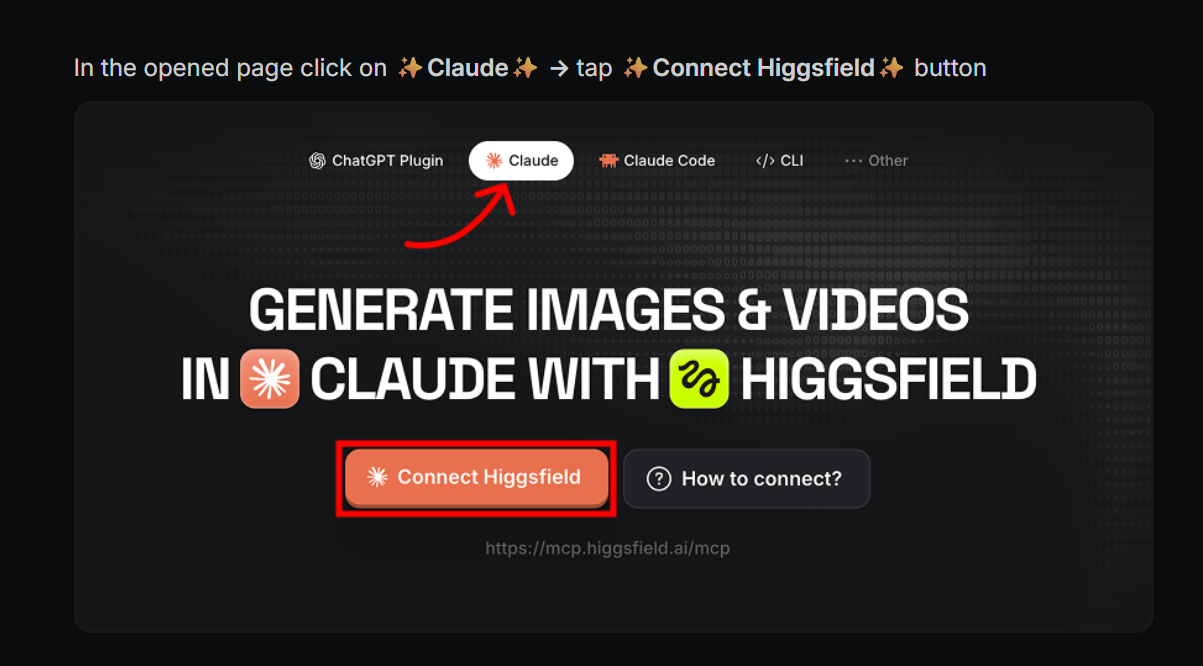
Choose Claude, then Connect Higgsfield. 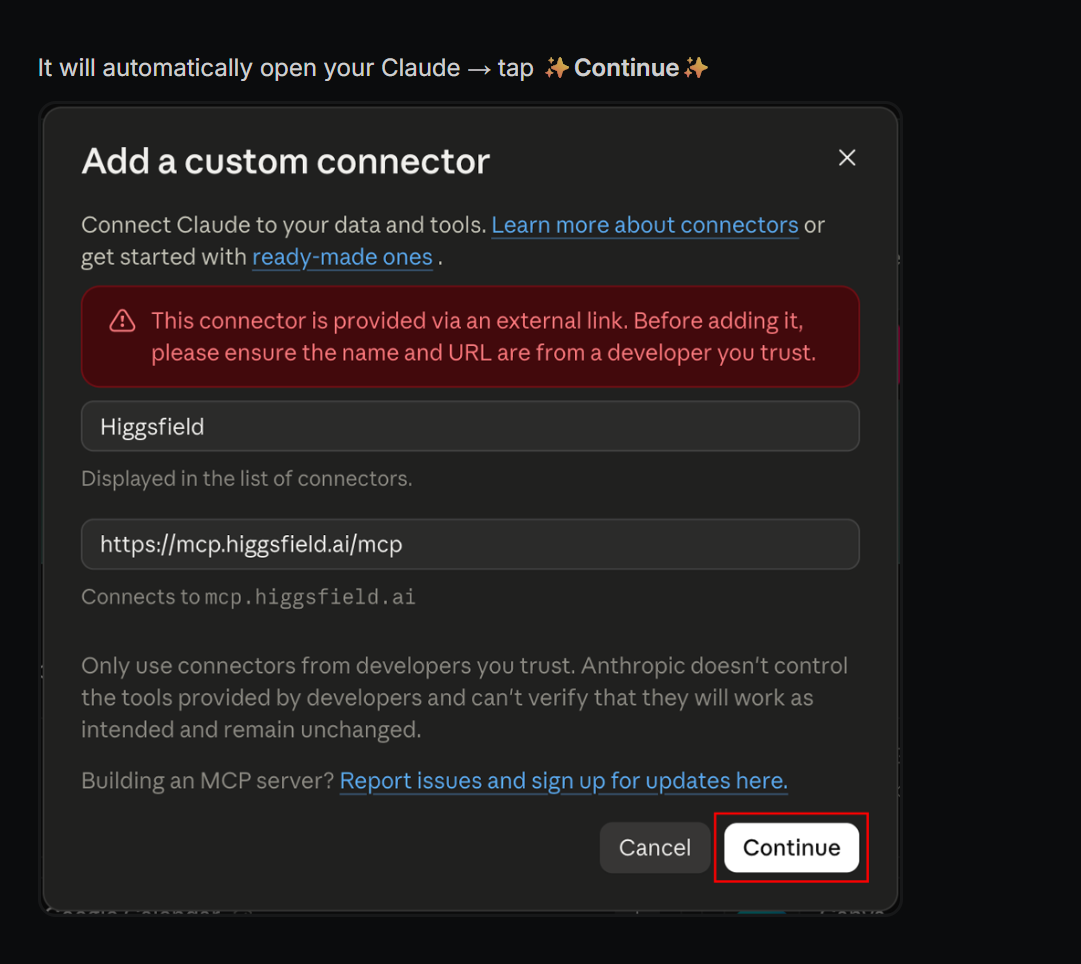
Check the name and server address, then Continue. 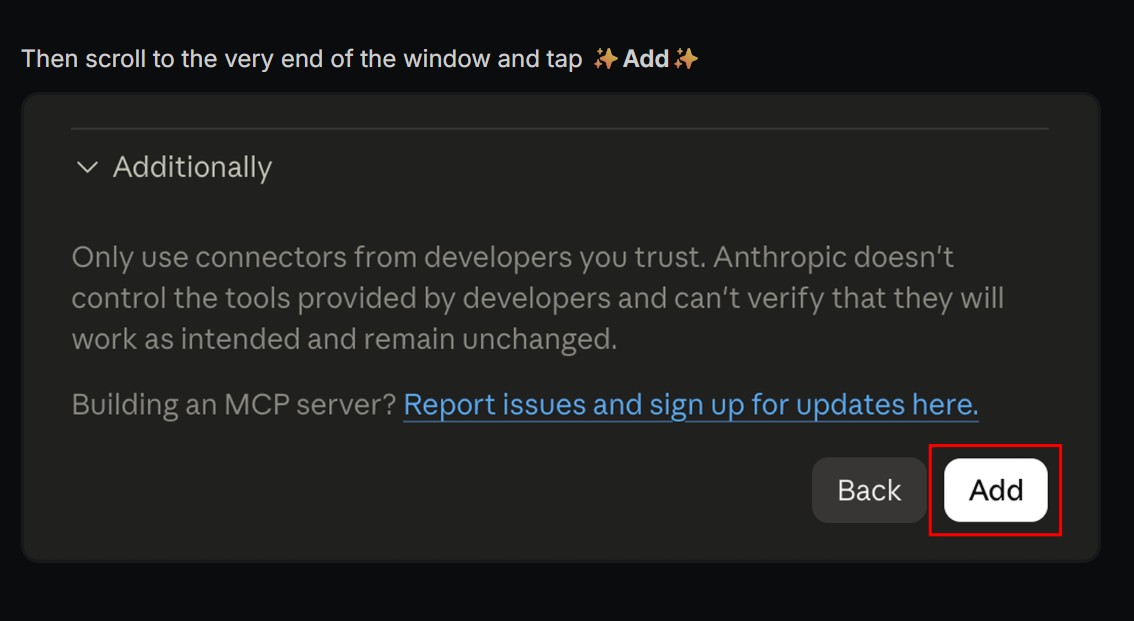
At the end of the setup, choose Add. - 02
Add your video and reference image
Your recording supplies the performance. Your artwork sets the look.
- Click here to open Claude (opens in a new tab)Start a chat with Higgsfield enabled.
- Attach your own speaking clip and an image you can use as the character or style reference. Say which file is which.
- If Claude opens a Higgsfield upload window, add the files there too so the generation tool can access them.

Reference image for video 1 
Reference image for video 2 - 03
Copy the prompt and make it your own
When I last tested this workflow, Wan 3.0 allowed up to 15 seconds per generation, so I split my Reel into Part 1 and Part 2 and generated them separately. Use one prompt per clip.
- Press Copy on Your editable video prompt below.
- Replace the highlighted scene description with your character, setting and action. Replace [DURATION] with this clip's length in seconds, not the full Reel's length. Keep each clip within the duration available in your current setup. Choose 9:16 for a vertical Reel or 16:9 for landscape, and remove the brackets after filling them in.
- Paste your edited prompt into Claude with your own video and reference image. You do not need to paste Part 1 or Part 2 as well; those are optional examples for reference.
Use this prompt and modify it
This is the template for your own video. It is a simplified, adaptable version based on my examples, not the exact prompt I used for the Reel.
Your editable video prompt Highlighted text in [brackets] = replace with your own.
Use Higgsfield MCP and Katana with Wan 3.0 to turn my uploaded video into an animated scene.

INPUTS
My video: the source for my voice, dialogue timing and performance.
My reference image: the character design and visual style.

SCENE
[Describe your character, setting and action. Example: I am a samurai running through a moonlit bamboo forest while two ninjas chase me.]

SETTINGS
Duration: match my recording, approximately [DURATION] seconds.
Requested resolution: 1080p.
Aspect ratio: [9:16 for a vertical Reel, or 16:9 for a landscape scene].
Audio on.

Keep my original words, voice and timing. Match the mouth movements to the recording, with expressive articulation and a clearly visible face.
Keep the character, outfit and movement direction consistent. Use clean cuts between front-facing camera angles at natural speech pauses. No orbiting camera or sudden turnarounds.

Make the character actually move through the scene, not just pose against a moving background. Add suitable action sounds beneath the dialogue without drowning it out or doubling my voice.

Use the files I supplied. If Higgsfield cannot access an attachment, open its upload window and wait for me to upload it there. Do not replace Wan 3.0 with an unrelated preset. Tell me if the requested duration or resolution is unavailable.

Show me the generation cost before submitting. Once I confirm, generate the clip and return the playable result and download link.
The prompts I used, for your reference
These are my prompts for reference. Please don't use them directly. Take inspiration from how I describe the scenes and structure the instructions.
Part 1: bamboo chase (video + image)
My three-angle example uses an 11-second speaking video and forest artwork. Lightly clarified for this guide.
Part 1: bamboo chase (video + image) Use Higgsfield MCP, Katana to perform this! Use Wan 3.0, 11 seconds, requested 1080p, audio on, to turn the reference video into anime with the reference art image art style, reference to video. SCENE The character from the attached artwork runs forward through a moonlit bamboo forest, pursued by two ninjas, while speaking the dialogue from my uploaded video. Keep the artwork’s character design and visual style. Use my clip as the dialogue and performance reference. THREE FRONT-FACING CAMERA ANGLES Use three separate tracking-camera setups connected by clean cuts. Do not orbit around the hero. The hero maintains the SAME forward running direction, head orientation and body movement throughout. He does NOT turn his head or body to find each new camera. All cameras remain ahead of him, looking toward his speaking face. Both eyes, the entire mouth and chin remain readable. SHOT 1 — 0.00–4.65 TIGHT FRONTAL FACE CLOSE-UP. Begin directly on his speaking face. The camera leads him along the path, maintaining distance. Keep the exaggerated mouth animation large and clearly synchronized. His running shoulders, fluttering clothing and pursuing ninjas provide movement without excessive head bobbing. SHOT 2 — APPROXIMATELY 4.65–7.00 SLIGHTLY LOW, FRONT-LEFT MEDIUM CLOSE-UP. Cut during the existing pause before “It was made with Wan 3.0.” If my recording uses different words, align this cut to its actual speech pause instead. Position this camera approximately 20 degrees left of the frontal view, slightly below eye level. Frame from upper chest to above the hat. This changes the perspective without requiring him to rotate. His head and torso continue facing straight along the escape route. Keep his mouth clearly visible throughout the Wan 3.0 sentence. Keep any supplied on-screen text consistent with the recording; do not invent extra text. SHOT 3 — APPROXIMATELY 7.00–END FRONT-RIGHT SPEAKING CLOSE-UP. Cut during the existing pause before the final sentence. Position this camera approximately 20 degrees right of the frontal view, at eye level, with tighter face framing. The hero continues the SAME forward run without turning, resetting his pose or reversing direction. Keep the exaggerated articulation clearly visible through the final spoken word. CONTINUITY The cuts change ONLY the camera viewpoint. Preserve his character design, running stride, escape direction, single compact dodge and original dialogue timing. Keep the entire original audio as one uninterrupted track across all cuts. Do not insert pauses or restart any words. No camera orbit, full profile, rear view, circular movement, hero rotation or backward running. ENDING Finish on Shot 3 with him still running forward and visibly speaking. No turnaround, camera swing, new location or added ending.Part 2: rooftop chase (audio + image)
This example uses audio and rooftop artwork, not a video reference. The conflicting video-reference opening was removed. The 160/35-credit chart is from my Reel, not a current price promise.
Part 2: rooftop chase (audio + image) Use Higgsfield MCP, Katana to perform this! Create the FULL Part 2 using Wan 3.0, the attached original Part 2 audio and the attached rooftop samurai reference image. NO video reference. Start on the village rooftops, not in the bamboo forest. SETTINGS 1080p, 16:9. Native audio generation ON: generate_audio = true. Cover the entire original recording, approximately 11.100 seconds. If generation requires whole seconds, generate 12 seconds and trim only the surplus ending after the original audio finishes. Never stretch, shorten, restart or shift the speech. CORE SCENE The samurai speaks directly to the camera while RUNNING FORWARD across moonlit village rooftops. Two ninjas actively pursue him. He continues running during the credit comparison. The appearance of the graph must NOT make him or the ninjas stop and become stationary presenters. ACTUAL PHYSICAL RUNNING Begin with everyone already mid-stride. Animate: - Alternating leg strides and foot push-offs. - Knees lifting and feet leaving the roof. - Natural hip movement and torso rhythm. - Arms pumping opposite the legs. - Small, natural head movement while speaking. - Clothing reacting to each stride. They physically travel past roof seams, lanterns and buildings. Do not simulate running using only moving scenery, wind or camera movement. Do not hold their bodies in fixed poses or make them run in place. FORWARD DIRECTION AND CAMERA The camera leads the hero along the same forward escape route, with its lens aimed toward his face. Both camera and hero travel toward the same destination. The ninjas pursue from behind. Use clean cuts between front-facing camera positions. No camera orbit or circular movement. The hero never spins, turns around, runs backward or changes his escape direction to face a new camera. Use frontal and shallow three-quarter views that keep his speaking mouth visible. EXAGGERATED, AUDIO-SYNCHRONIZED SPEAKING The samurai himself visibly delivers the attached recording. It is NOT an external narrator. Use expressive articulation: - Large jaw openings on open vowels. - Strong rounded lip shapes. - Wide mouth-corner movement. - Clear lip closures for consonants. - Distinct shape changes matching actual syllables. - Mouth rests only during the recording’s actual pauses. Approximately twice the expressiveness of subtle natural speech, without distorting his identity. No tiny jaw twitching, random mouth flapping or permanently open mouth. Exaggerate only the VISUAL performance. Preserve my original voice, accent, pitch, delivery, words and timing. Do not make me shout or pant. Keep the entire mouth and chin visible. Tilt the hat upward. No hands, weapons, graphics or motion blur covering his lips. SHOT PLAN All times are local to Part 2 and approximate. The original audio determines precise synchronization. 0.00–1.30 TIGHT FRONTAL RUNNING CLOSE-UP. Open immediately on my speaking face for: “And the crazy part?” Show exaggerated, syllable-specific articulation. My shoulders move naturally with my running rhythm. Both ninjas are visibly pursuing behind me, with active strides rather than frozen poses. 1.30–3.55 FRONT-LEFT THREE-QUARTER MEDIUM TRACKING SHOT. Widen to approximately thigh-up framing so my running mechanics are visible. I continue speaking the sentence about being four times cheaper than Seedance. My knees rise, my arms pump and my body advances along the roof. One ninja follows the same ridge while the other crosses an adjoining rooftop. The camera remains ahead of me. I do not turn my body toward it. 3.55–4.10 BRIEF WIDER RUNNING INSERT DURING THE EXISTING PAUSE. Show my feet pushing off and landing across a narrow rooftop gap. Both ninjas follow with visible takeoffs and landings. This is a short, fast action beat, not slow motion. Do not add a pause or delay the next sentence. 4.10–7.25 FRONTAL WAIST-UP RUNNING SHOT. I visibly speak the complete Seedance pricing sentence. Keep my face readable while allowing clear torso rhythm, shoulder movement and pumping arms. Both ninjas remain actively running behind my shoulders. Reserve the lower third for the chart. Do not freeze the footage to accommodate it. Clearly articulate: “one hundred and sixty credits.” 7.25–9.64 SLIGHTLY TIGHTER FRONT-RIGHT RUNNING SHOT. Cut to a shallow three-quarter angle without changing my running direction. Clearly articulate: “Wan 3.0? Thirty-five credits.” Continue the running performance throughout the line. On the 35-credit reveal, BOTH ninjas react in disbelief while I keep running and speaking. 9.64–10.18 BRIEF SHOCKED-NINJA REACTION DURING THE EXISTING SPEECH GAP. Show BOTH ninjas: - Eyes widening dramatically. - Bodies jolting backward in surprise. - Weapons dipping. - Strides faltering into a brief stumble. - Large comic “!” symbols above BOTH heads. Add a short collective gasp. Only now may their pursuit briefly falter. They must not stand still before the reveal. Do not extend the original speech gap. 10.18–END TIGHT FRONTAL RUNNING CLOSE-UP. Return to my speaking face for: “Here’s how I do it.” Clearly articulate every syllable. My shoulders and clothing continue moving with the run. Finish with me still advancing forward. No stop, turnaround, new location or added ending. MANDATORY ACCURATE HORIZONTAL GRAPH Build the chart as a separate, precisely rendered motion-graphics overlay over the MOVING footage. Do not ask Wan to invent its lettering or numbers. If the approved chart exists as a separate overlay, reuse it unchanged. Do not reuse stationary character footage merely to preserve the graph. EXACT TEXT Heading: CREDITS FOR A 10-SECOND VIDEO Upper row: SEEDANCE 2.5 160 CREDITS Lower row: WAN 3.0 35 CREDITS Use fixed text values. NO animated number counters, changing digits, decimals or currency symbols. Only the bar lengths animate. BAR GEOMETRY Both bars grow horizontally LEFT TO RIGHT from the same starting point. Use one fixed linear scale: - Seedance bar: 800 units wide. - Wan bar: 175 units wide. Uniformly scale both widths together if necessary. Never independently stretch the bars or make both fill their tracks. Seedance is coral red. Wan is bright cyan. Keep the chart screen-anchored and stable while the characters continue moving underneath it. GRAPH TIMING Approximately 4.10: Show the heading. Approximately 5.22, on “Seedance”: Reveal SEEDANCE 2.5 and its empty upper track. Approximately 5.68–6.40, during the spoken number: Show the fixed text “160 CREDITS.” Grow its bar from zero to exactly 800 units. Hold the completed row. Approximately 7.38, on “Wan 3.0”: Reveal WAN 3.0 and its empty lower track. Approximately 8.80–9.16, during “thirty-five”: Show the fixed text “35 CREDITS.” Grow its bar from zero to exactly 175 units. Trigger BOTH ninjas’ shocked reaction. Keep both completed rows visible together until approximately 10.50 seconds, then clear the graphic. The chart must not cover my speaking mouth or the ninjas’ reaction faces. CHARACTER AND STYLE Match the rooftop reference exactly: same face, fringe, earring, eye scar, bruising, indigo samurai outfit, red sash, katana and woven bamboo hat. Same dimensional comic-film rendering, drawn contours, halftone textures, blue/magenta moonlight and warm village lanterns. Use fast, stepped 12 fps-style BODY animation with clear pose changes. Do not freeze the speaking mouth to create choppiness. AUDIO Generate audible, synchronized: - Running footsteps. - Roof-tile impacts. - Ninja takeoffs and landings. - Clothing movement. - Blade whooshes. - Graphic-reveal accents. - Short shocked gasps. Keep my original dialogue unchanged and intelligible. If generated speech alters my voice, replace only that dialogue component while retaining the effects. If clean separation is unavailable, create an effects-only layer beneath the original recording. Never layer two versions of my speaking voice or mute the entire soundtrack. FINAL CHECK The finished video must contain: 1. Actual forward running from the hero and BOTH ninjas before the reveal. 2. Clearly exaggerated, audio-matched speaking. 3. SEEDANCE 2.5 — 160 CREDITS. 4. WAN 3.0 — 35 CREDITS. 5. Correctly proportioned horizontal bars with fixed, accurate numbers. 6. BOTH ninjas visibly shocked on the 35-credit reveal. 7. Original speech timing and audible anime action effects. - 04
Send it and let Claude generate
Press the upward arrow in Claude to send your request.
- Check the attachments and prompt, then press Send. Review the model settings and credit cost, and confirm when asked.
- Claude submits the job through Higgsfield. Wait for the playable result in the conversation; a Queued message is not the finished video.
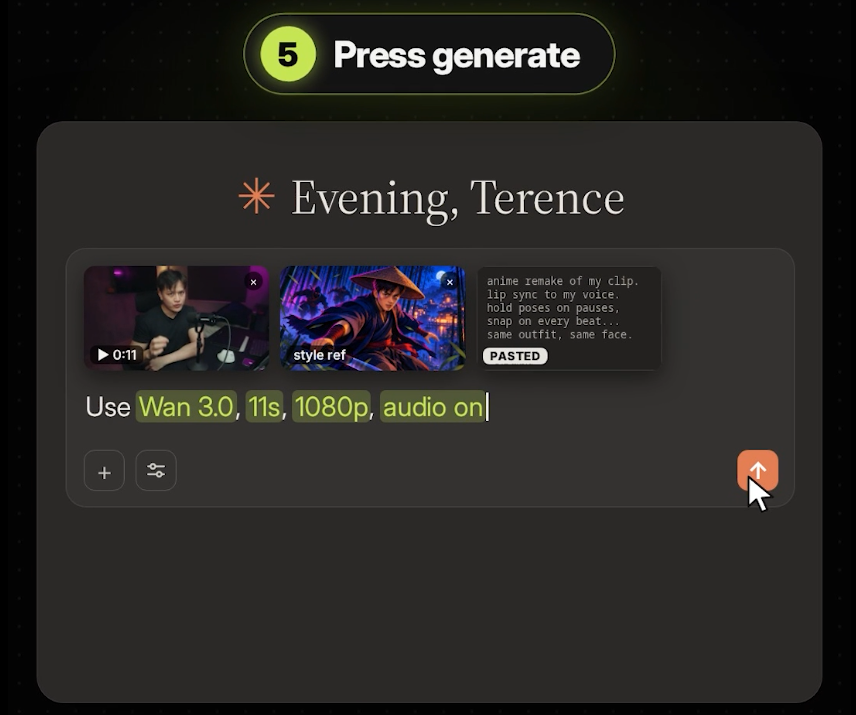
- Add files here
- Press send
- 05
Play and download the result
These are my two example exports. They are 720p files; the prompts requested 1080p, so check your actual export too.
- Play the complete video. Check the mouth timing, voice, movement and final spoken word. If something is wrong, describe that specific issue to Claude.
- Click Download on the final result.
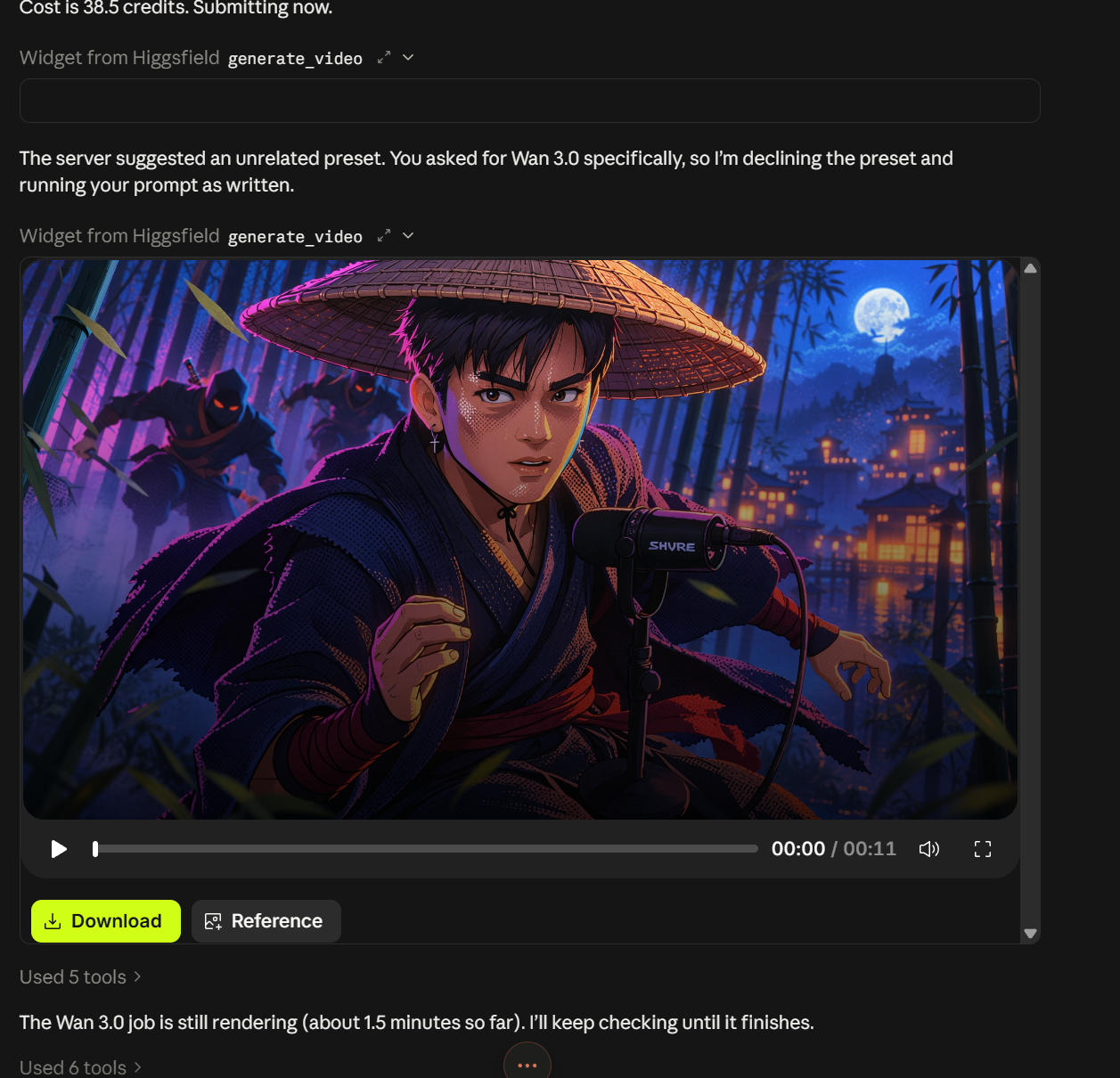
- Download here
Video 1: final result. Video 2: final result.