
What you'll make
Your performance, a new character and a voice you choose.
Turn a recorded performance into a different character with Genjutsu Objects swap.
Who this is for
Creators with a talking clip and a character reference.
Step by step
Run the workflow
- 01
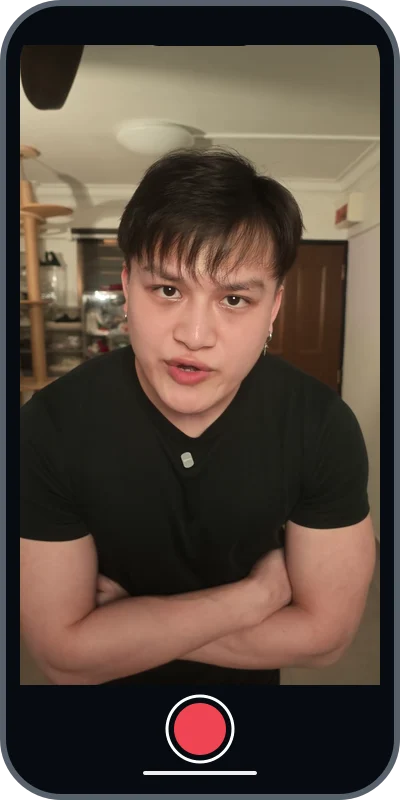
Record yourself talking
Record the speech, expressions and gestures you want to keep. Keep your face visible and retain the original audio. My clip is about 9 seconds.
- 02
Upload your video
- Open Higgsfield → Genjutsu → Objects swap.
- Select Add a reference video to edit → Uploads → Upload media. Choose your clip, confirm the crop and trim, then select the uploaded video.

Choose Objects swap, not Motion transfer. 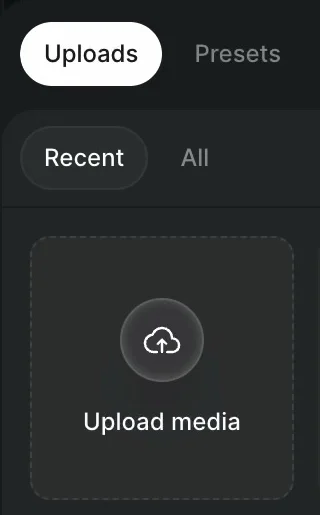
Uploads → Upload media - 03
Add your character reference
- Select Add your characters, products, or clothes. Upload your character image, select it and close the panel.
- This is my reference sheet: the same character in front, side and full-body views.
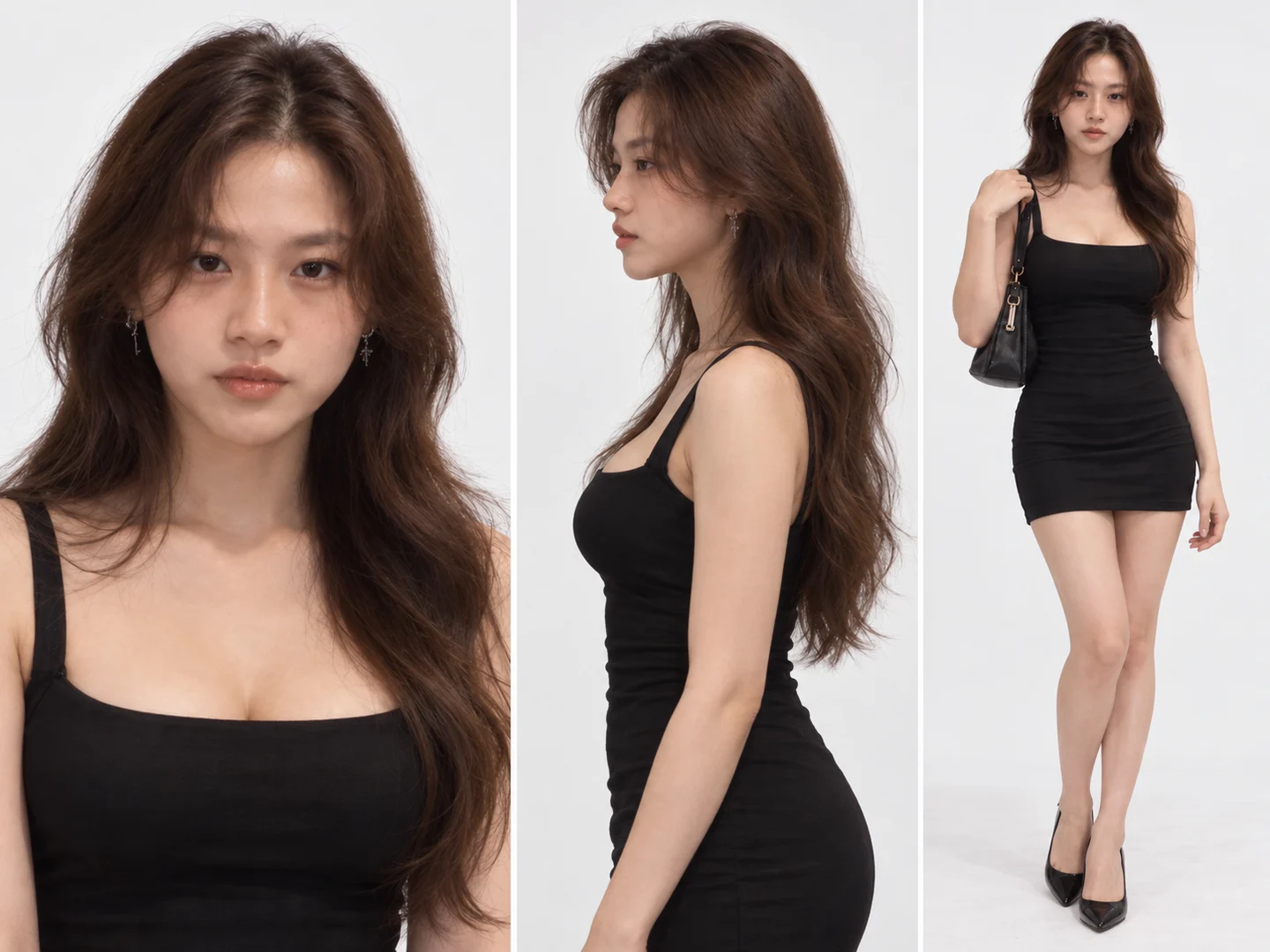
The character reference I used. - 04
Generate the swap
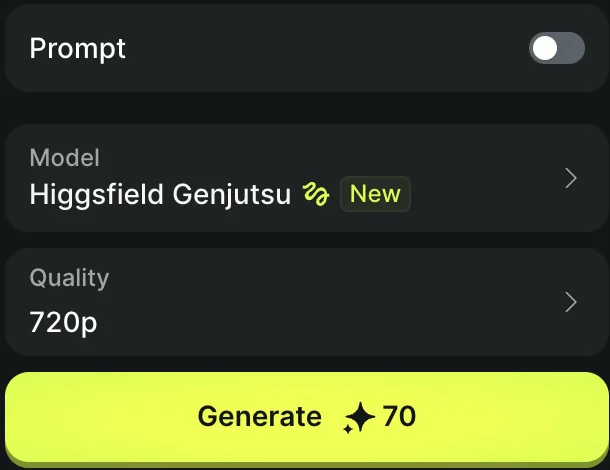
- Leave Prompt off. Choose your quality, then press Generate. I used 720p.
- Open the finished video in History. It still has your original voice; change that in the next step.
Prompt off → 720p → Generate - 05
Choose a new voice
- Open Change Voice on the finished video. Preview a voice, select it, then press Change Voice. I chose Gracie.
- When the new result appears in History, play it with sound and use its download icon to save it.
Open Change Voice on your result. 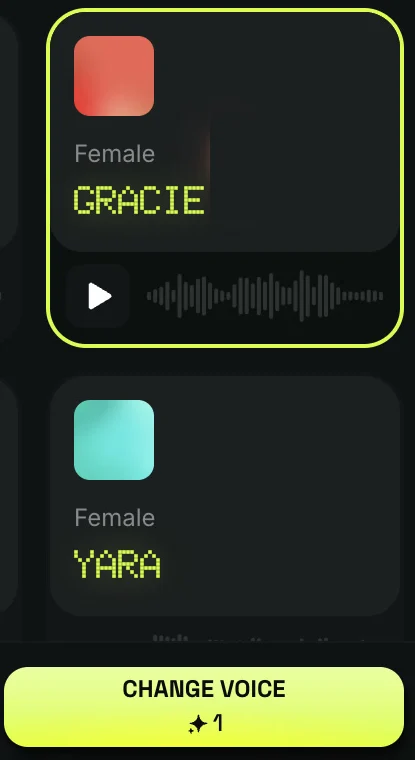
Gracie selected → Change Voice Before voice change: New character, my original voice. After voice change: Same character, Gracie voice. Turn up the volume if needed.